Appearance
Transactional Emails
A transactional email is a single message your application sends to one specific address in response to something that recipient just did. Because it is addressed directly rather than through a subscriber list, it reaches anyone you name, and nothing about it depends on subscription state. This page covers creating one, calling it from your code, personalizing it, attaching files, and the statistics it reports.
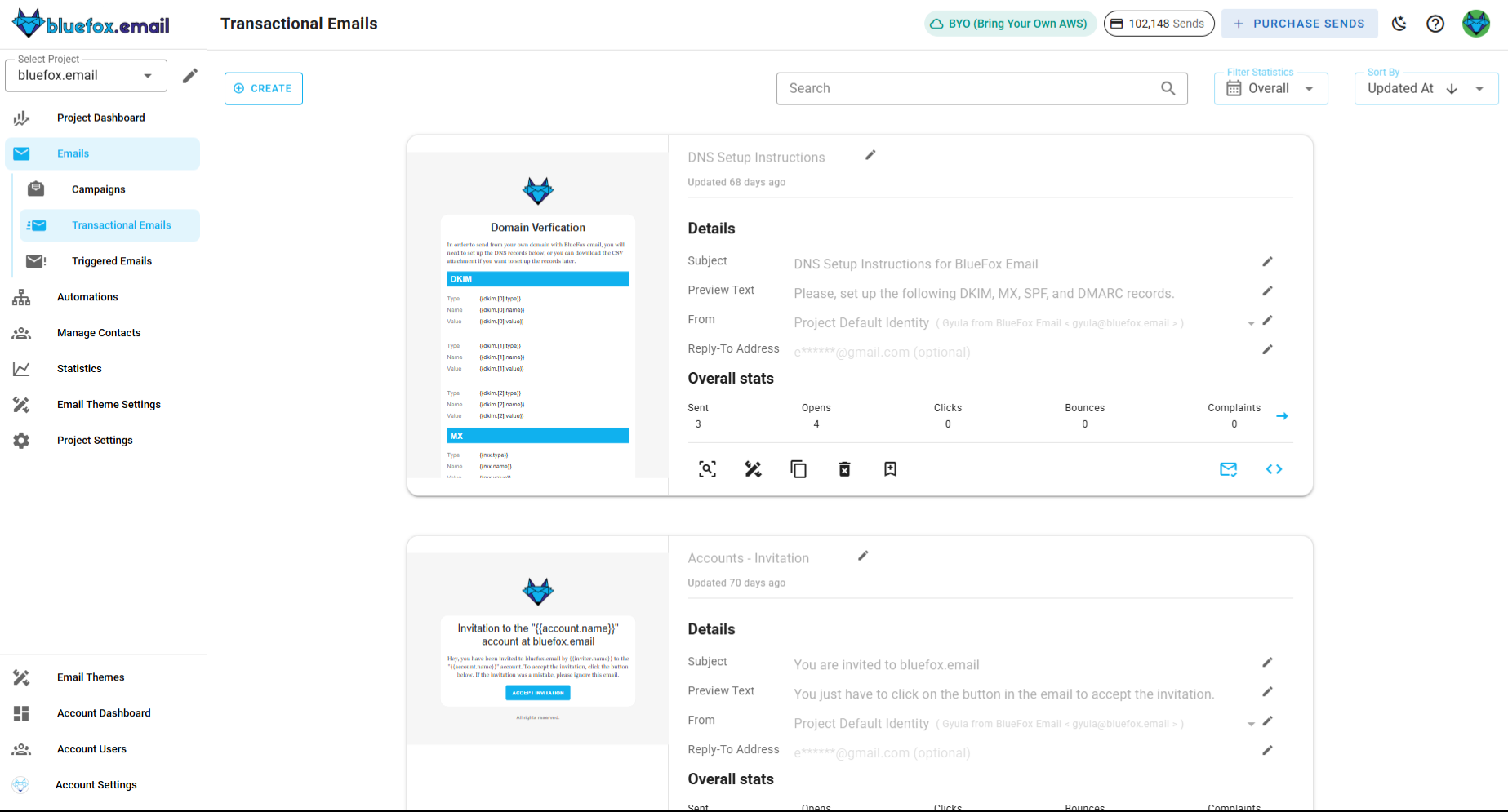
You can find the transactional emails of a project under the Transactional Emails tab.
Creating a Transactional Email
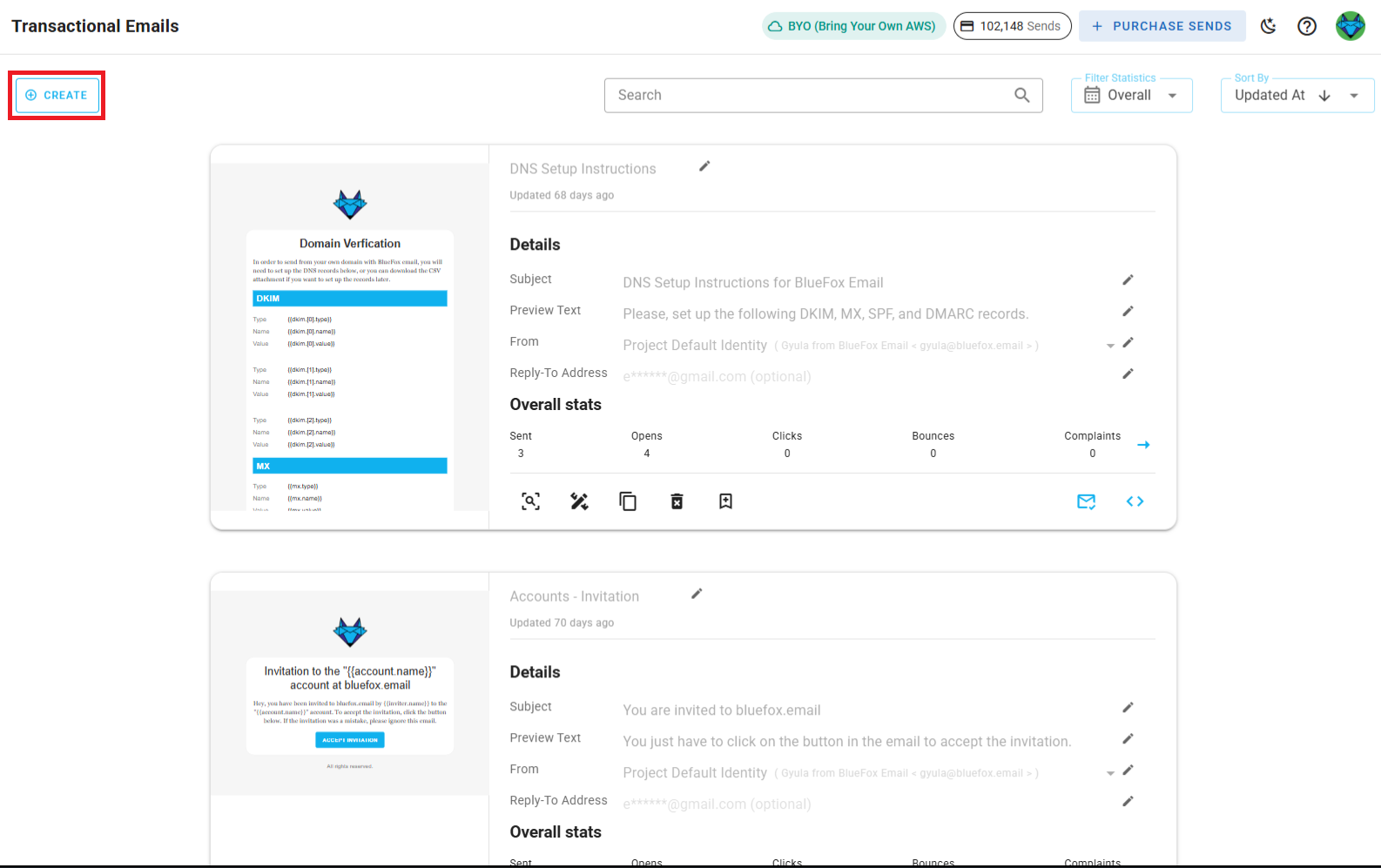
To create a new transactional email, click the Create button.
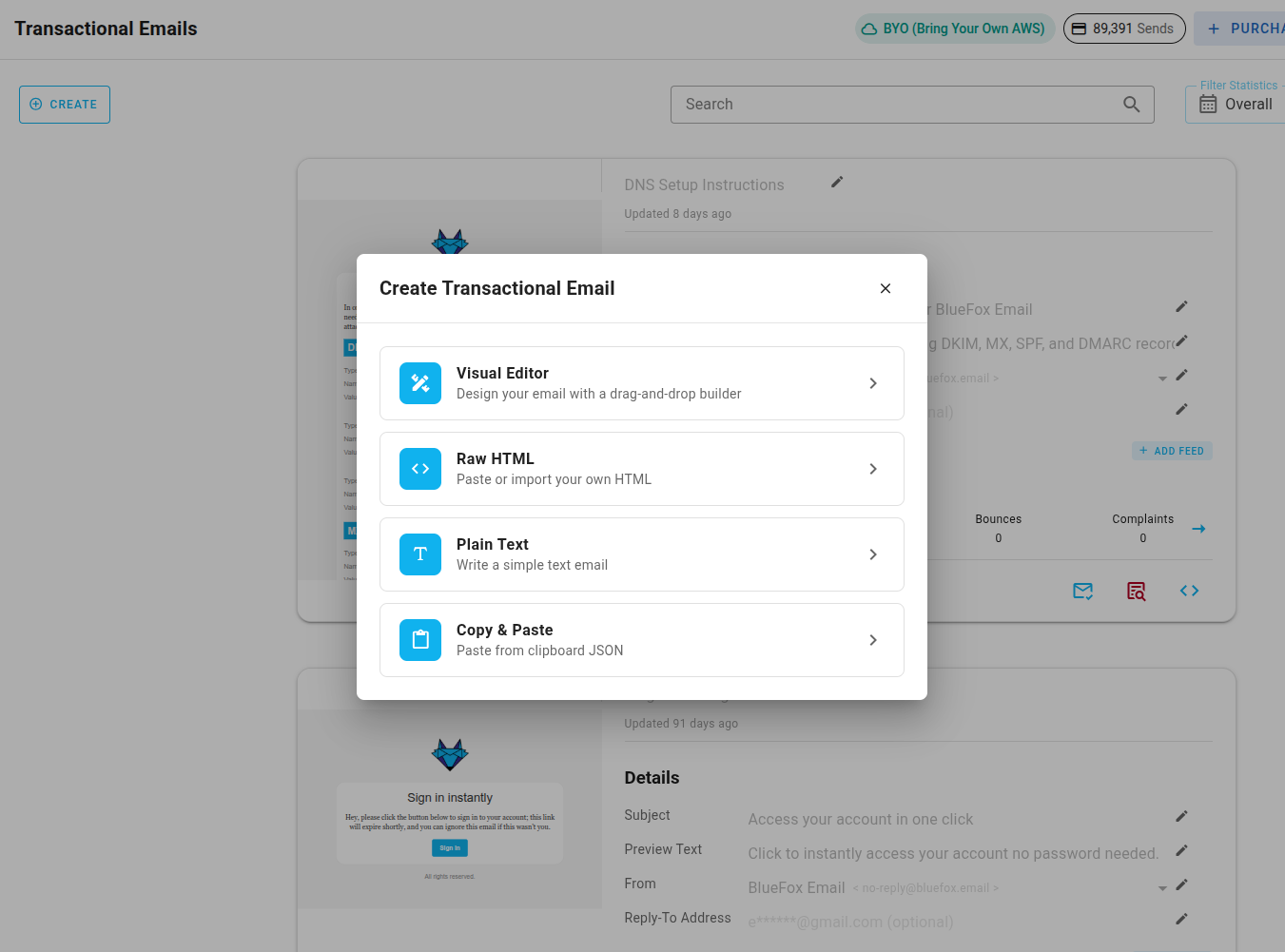
You'll be asked to choose one of four options:
- Visual Editor: the drag-and-drop Chamaileon editor, with full access to your design system's blocks, components, and templates.
- Raw HTML: write your own HTML directly.
- Plain Text: a plain-text-only email, no HTML.
- Copy & Paste: paste in a previously copied email design. This works no matter which editor the original email was built with.
INFO
Design system templates and pre-designed templates are only available when starting with the Visual Editor. Emails built with Raw HTML or Plain Text also can't be saved back as a reusable design system template. Everything else, personalization, feeds, sending, and analytics, works the same regardless of which editor you pick.
TIP
If you use Copy & Paste to reuse content from a Chamaileon-built (Visual Editor) email inside a Raw HTML or Plain Text email, strip out any Chamaileon-specific merge tag or component markup first, it won't resolve there. Everything else should carry over as-is.
Visual Editor
If you didn't start from a copied design, select a template category defined in your project's design system.
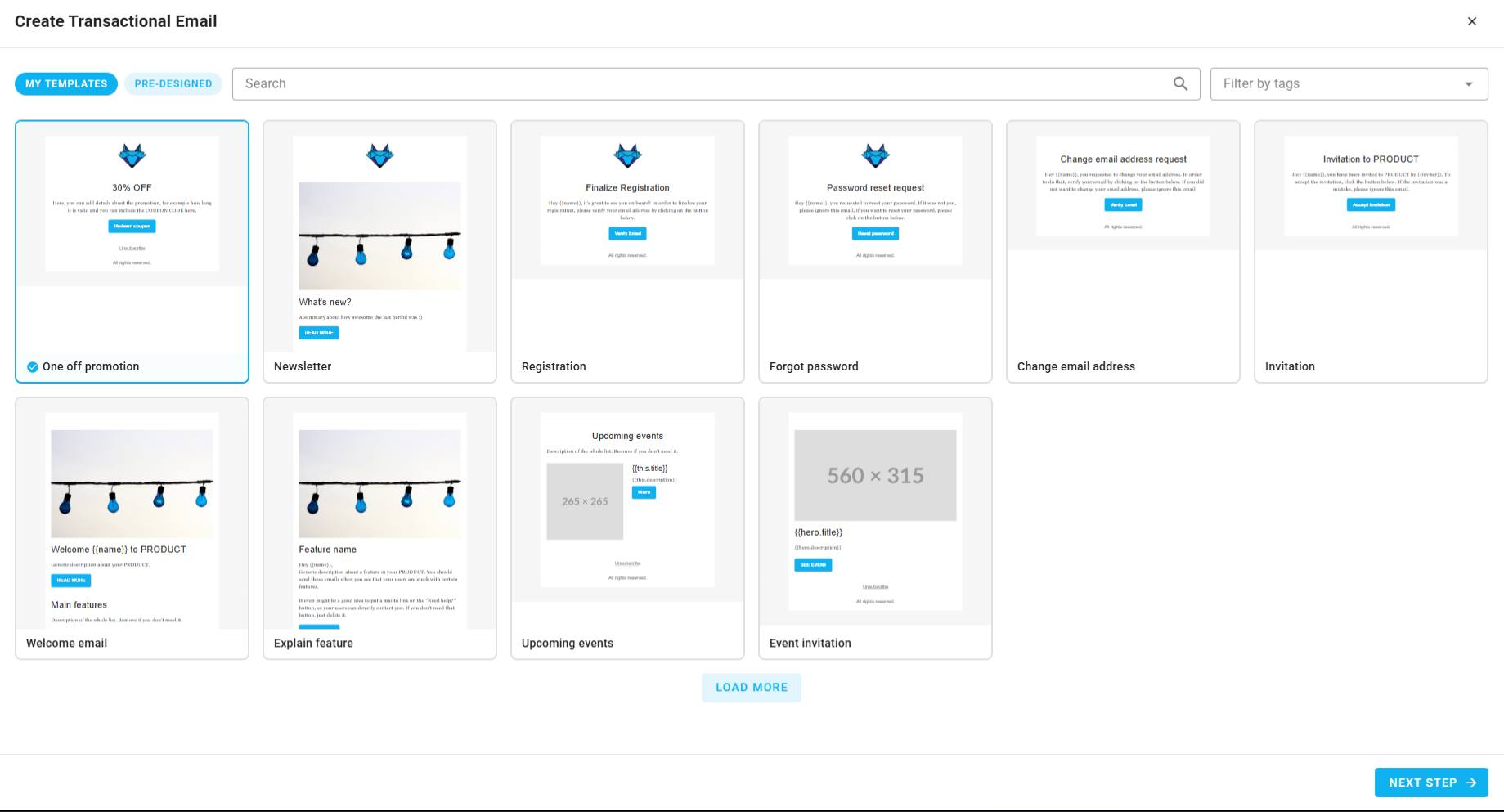
You can also choose a pre-designed template: 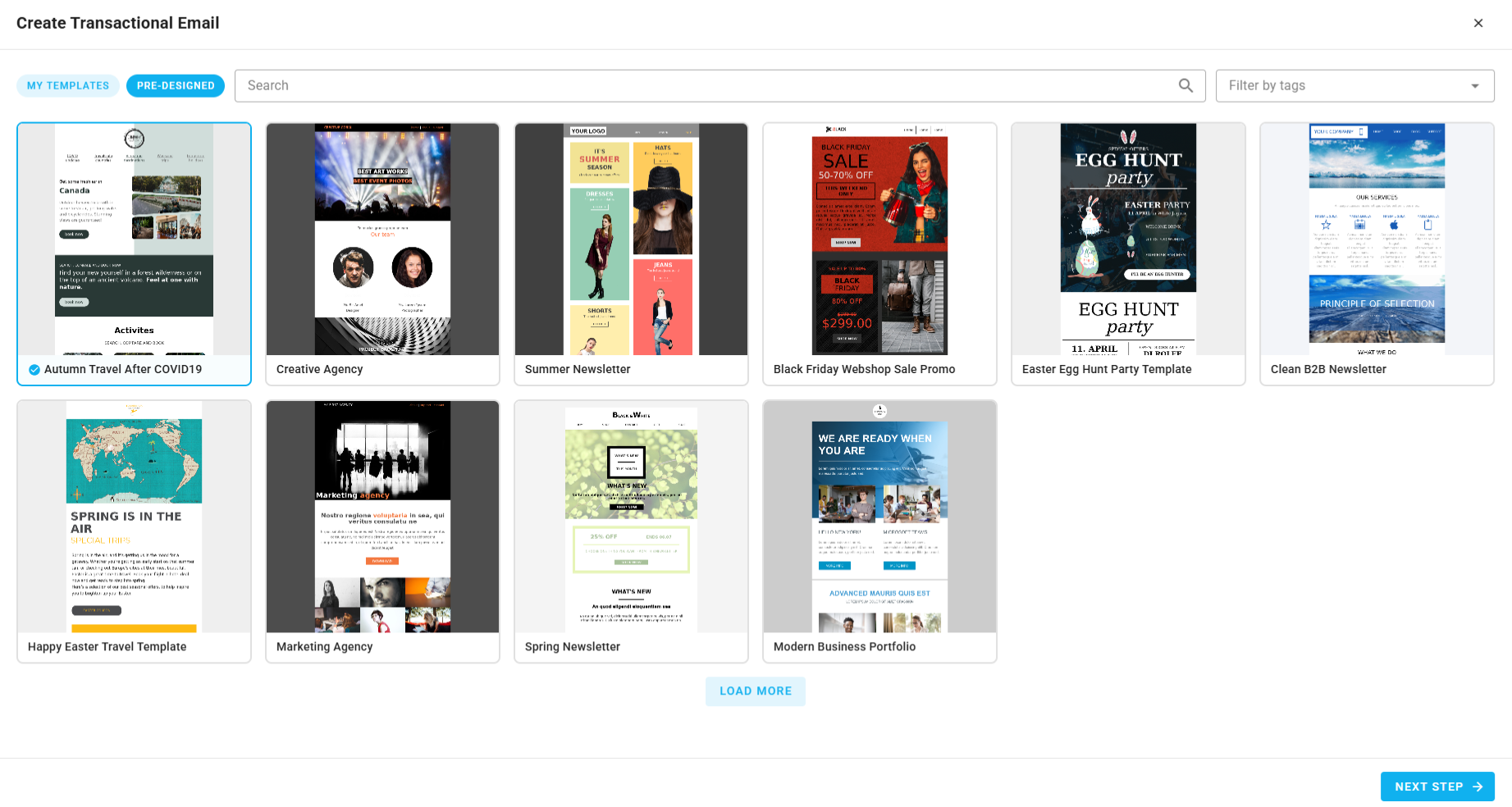
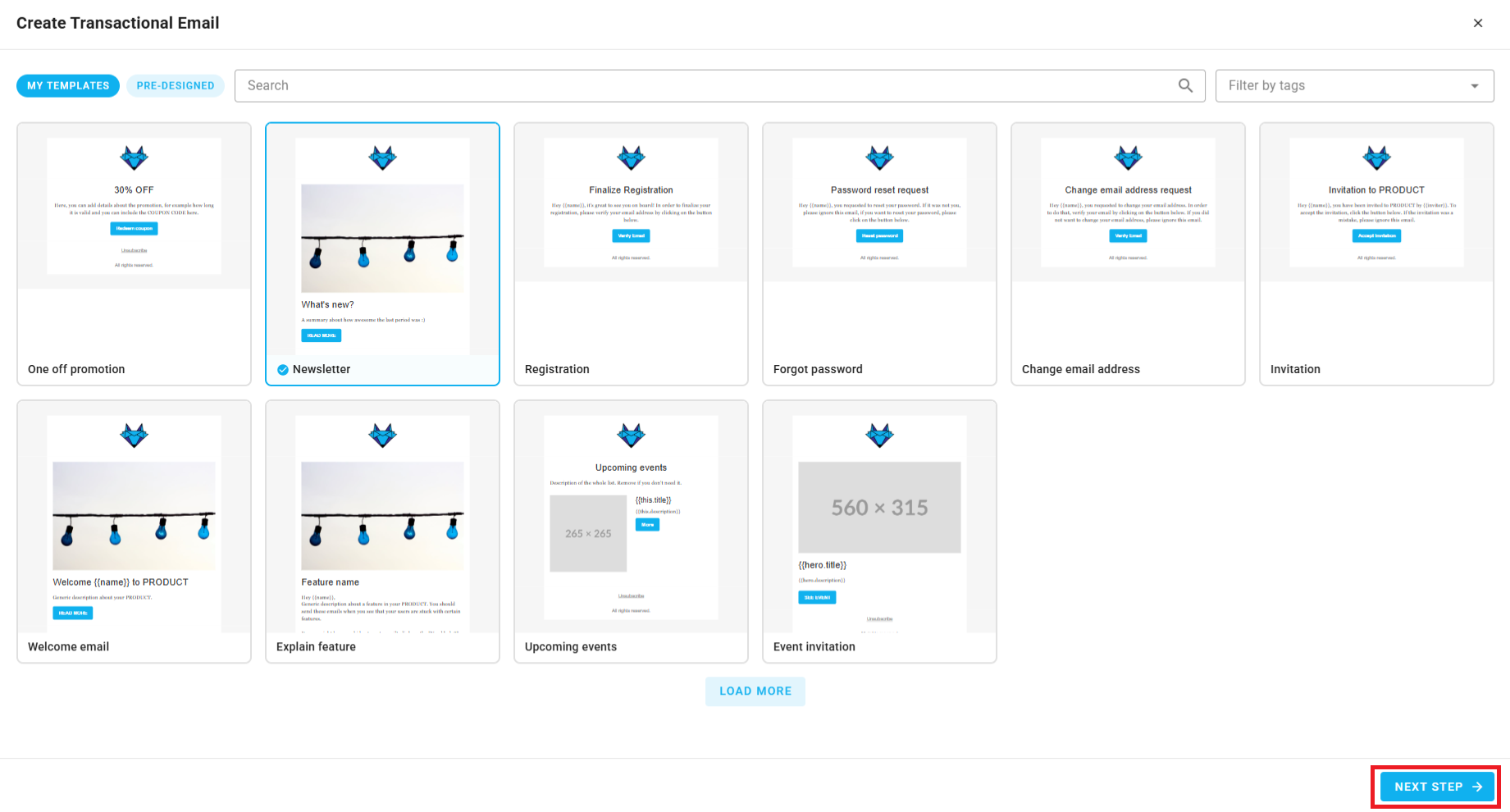
Then, choose a template to start from, also defined in your design system. And then click Next.
Enter the name, subject line, and preview text for your email. You can personalize these with merge tags!
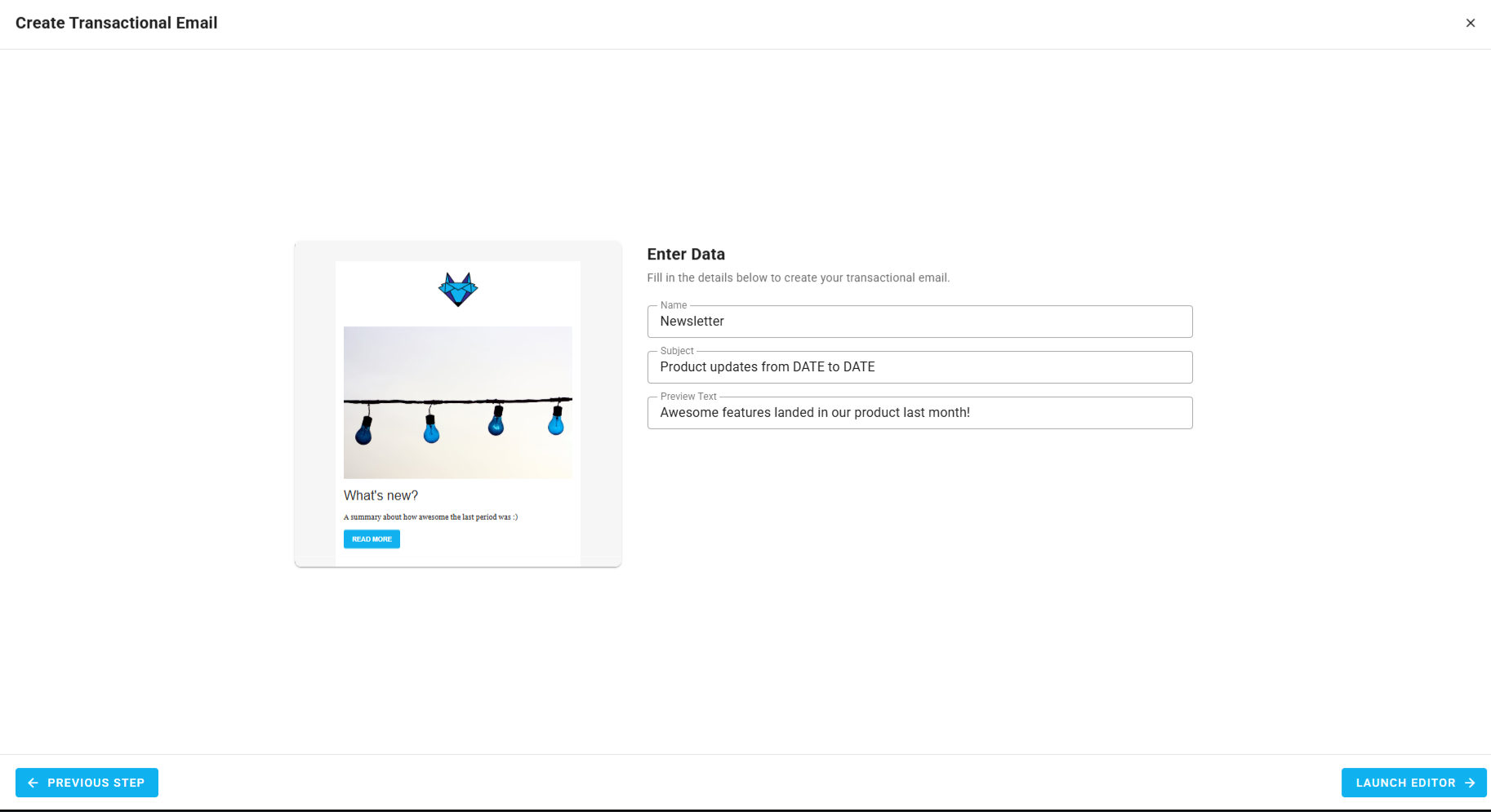
This form will appear as first step if you choose to start from scratch.
After that, you will see a summary page. Click "Launch Editor".
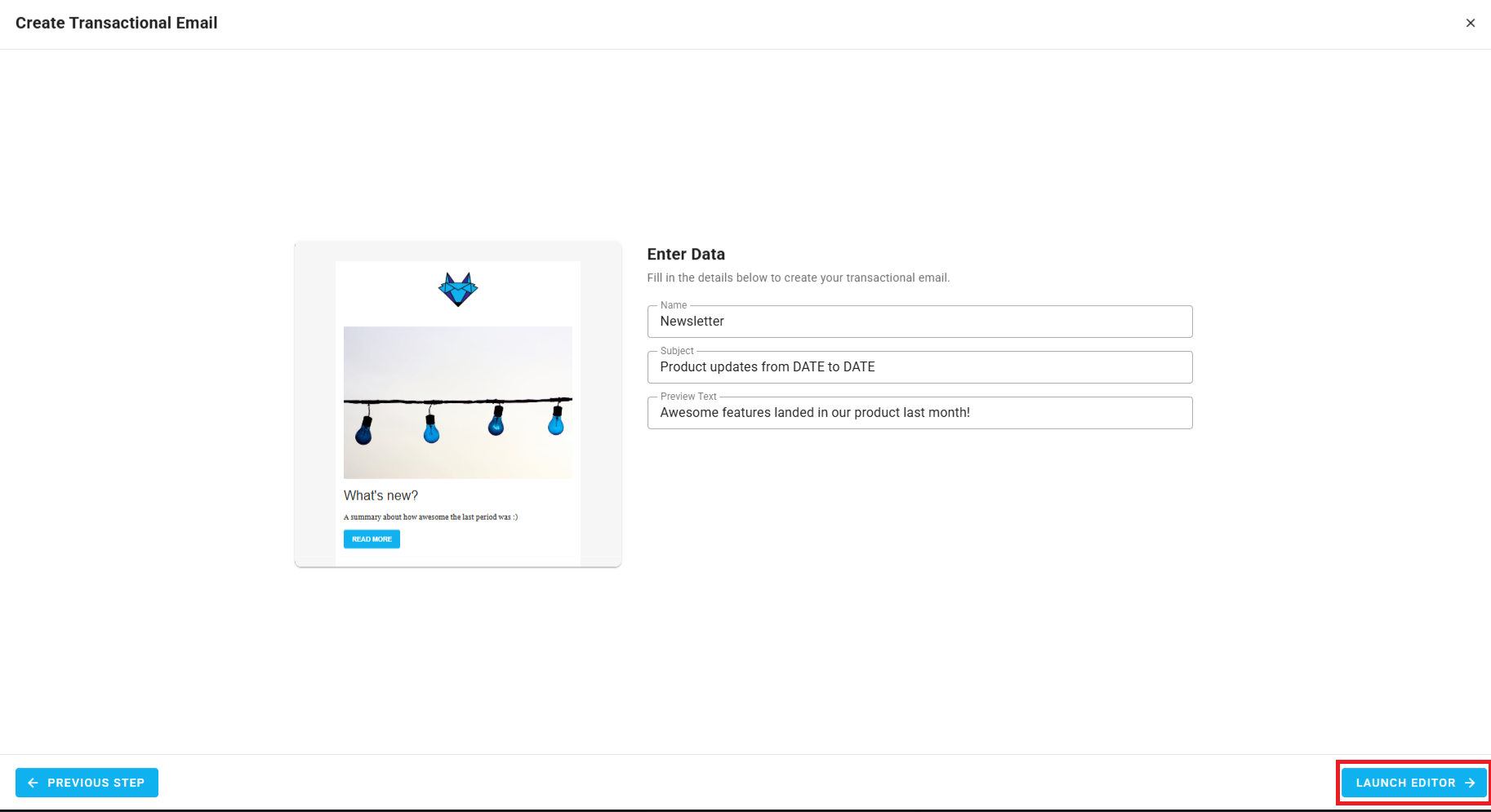
Finally, make changes in the drag-and-drop email editor:
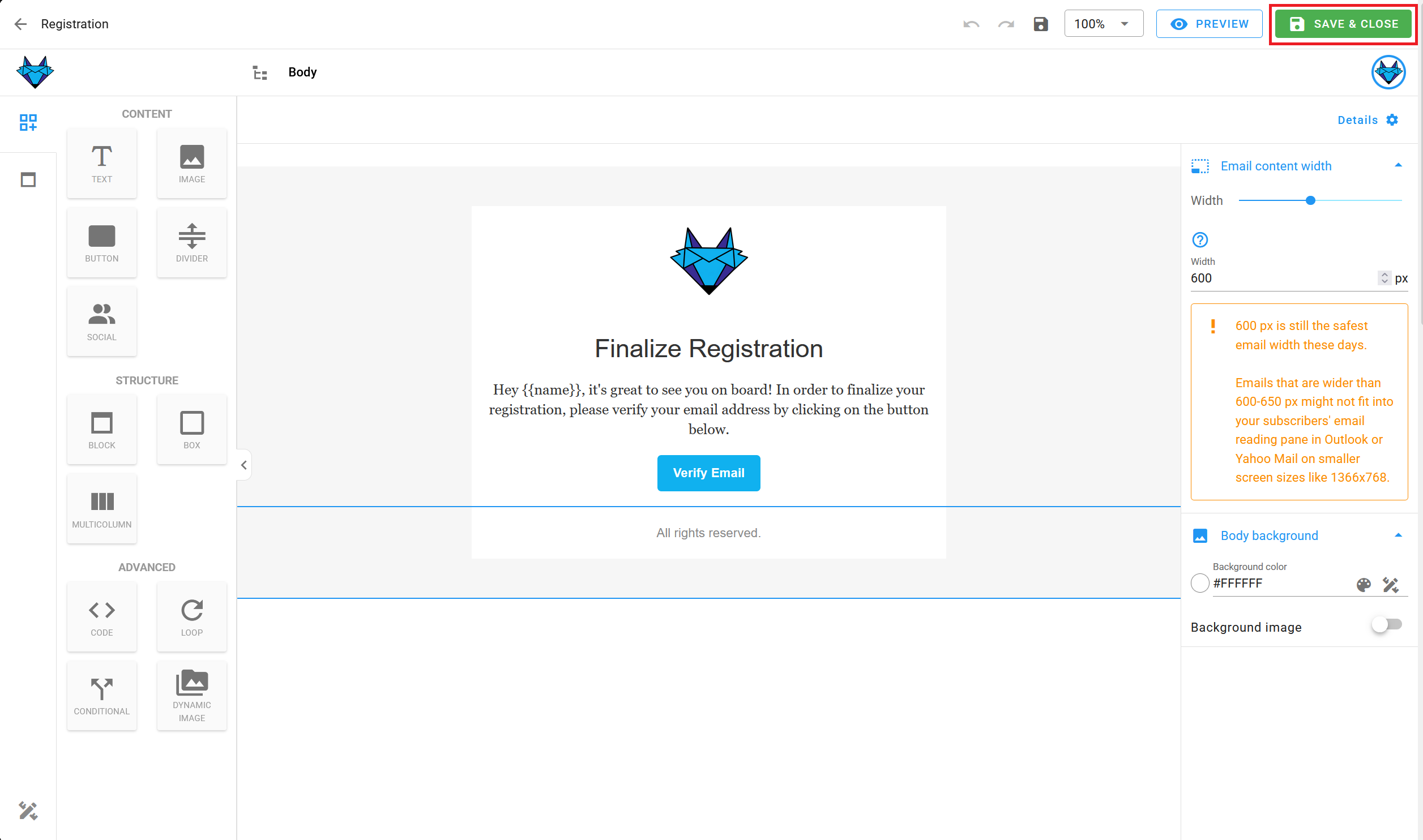
When you're done, click "Save & Close". You can make changes later as well.
Raw HTML / Plain Text
These two editors always start from scratch, there's no template selection step.
Enter the name, subject line, and preview text for your email. You can personalize these with merge tags!
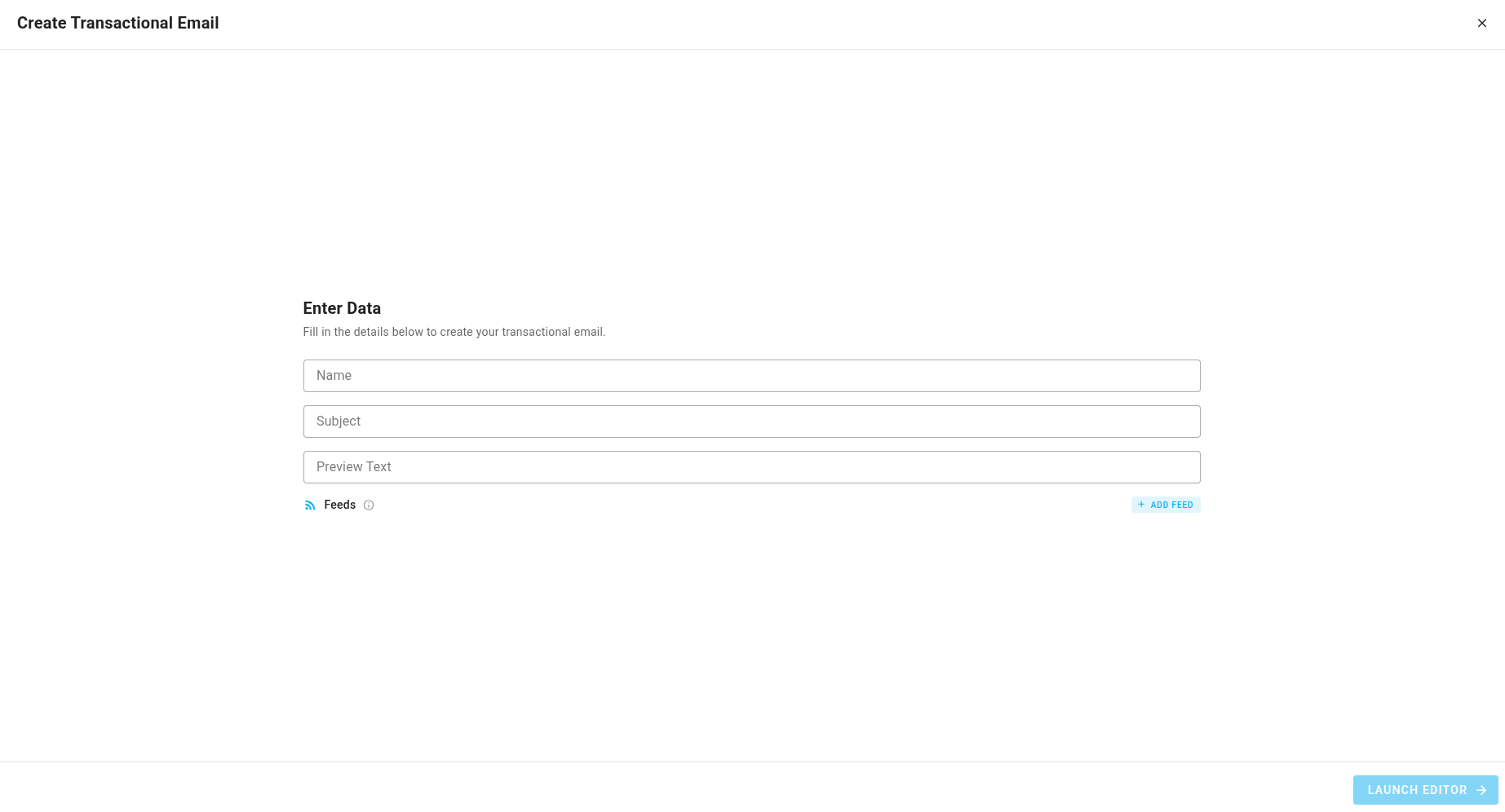
After that, click "Launch Editor".
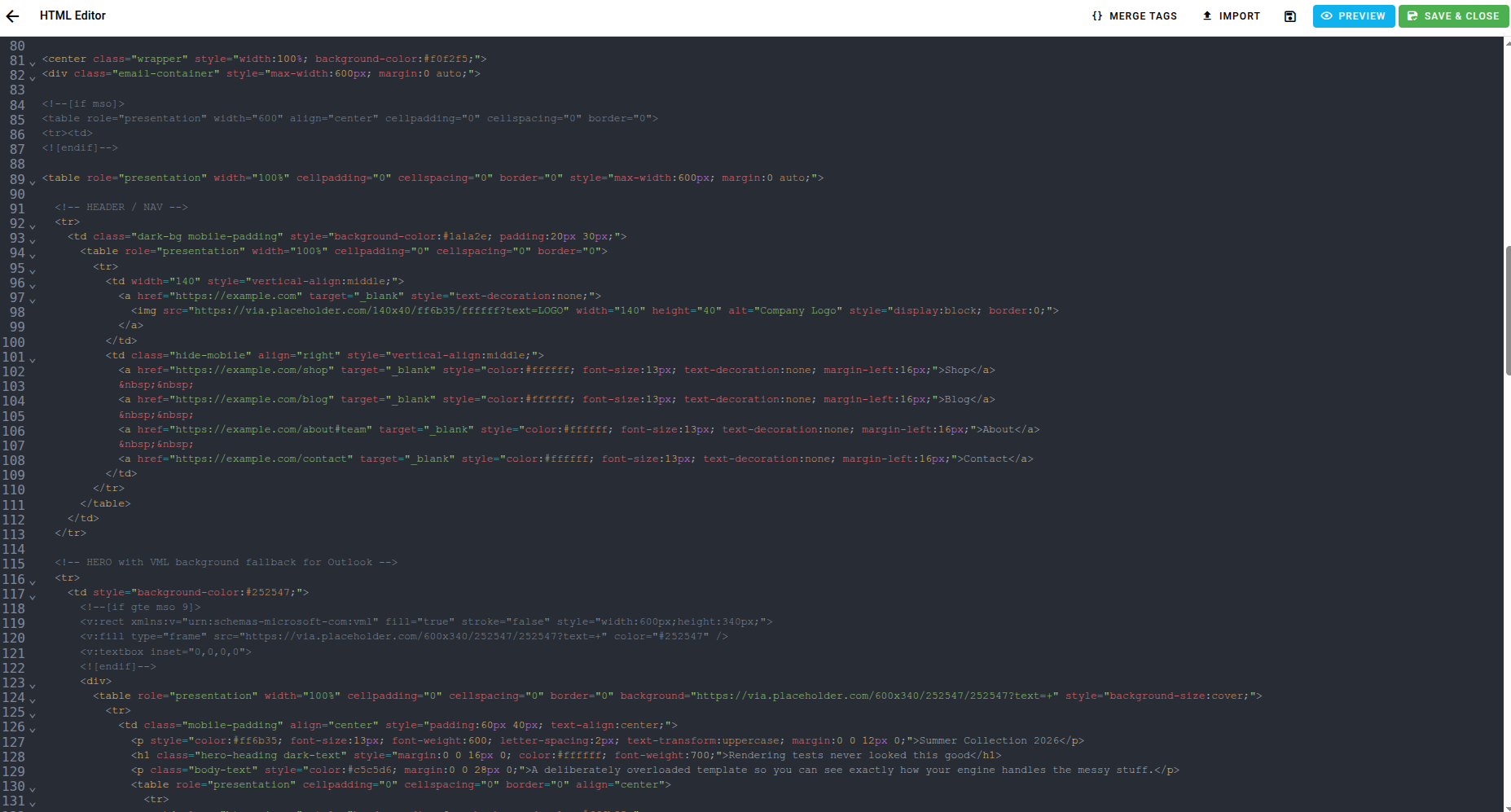
Finally, make changes in the editor:
Raw HTML:
Plain Text:
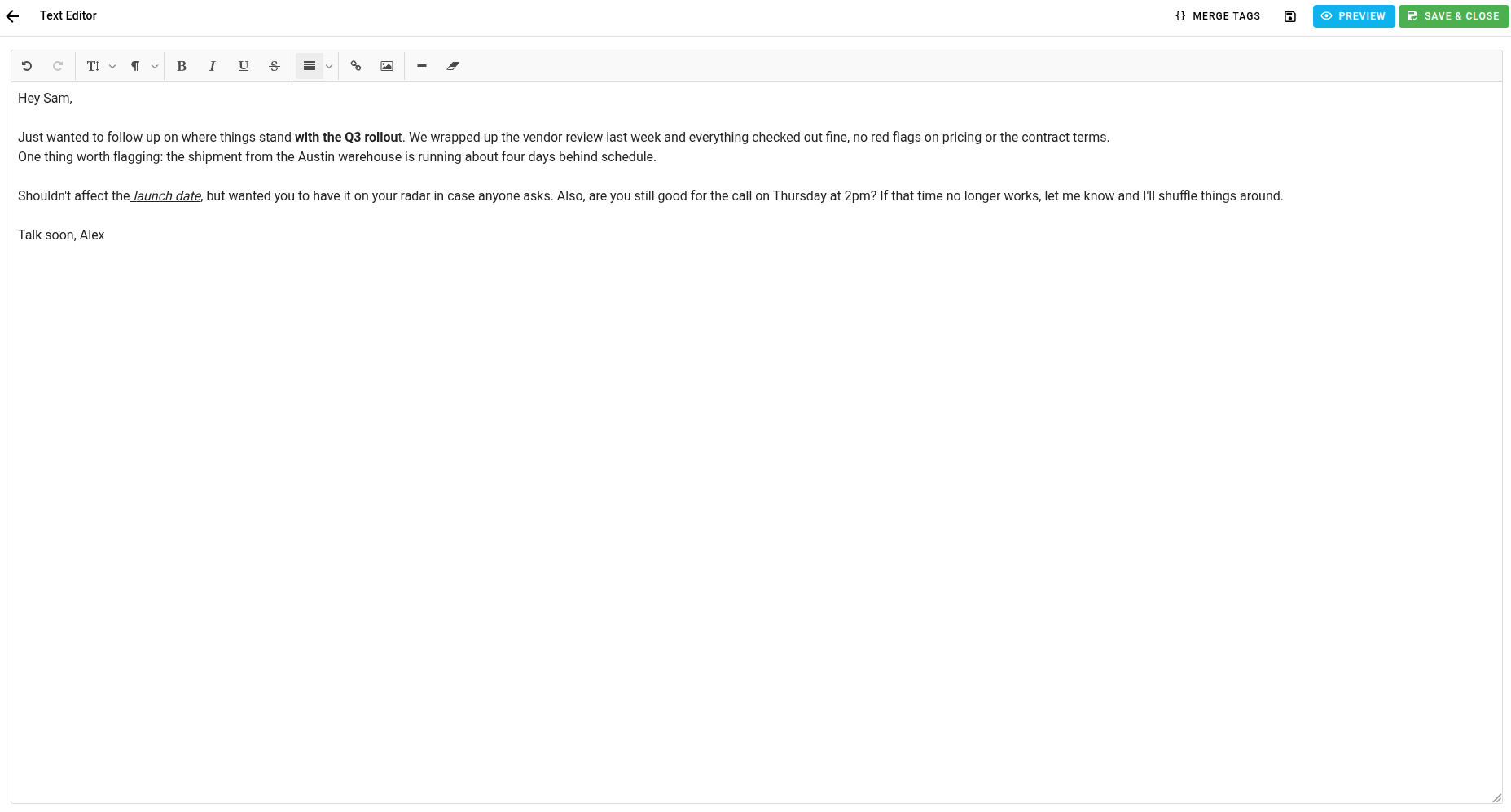
The Raw HTML editor also has an Import button. Both editors give you Merge Tags, Preview (including Preview with data), Save, and Save & Close controls. Merge tags and feed variables are inserted via a side panel at your cursor position, rather than bound to a selected element like in the Visual Editor.
You can also add data feeds to Raw HTML and Plain Text emails the same way as any other transactional email, from the Feeds section on the email card. The only difference is how you reference feed items inside the editor: through the merge tag side panel instead of a drag-and-drop Loop block.
When you're done, click "Save & Close". You can make changes later as well.
Transactional Email Integration
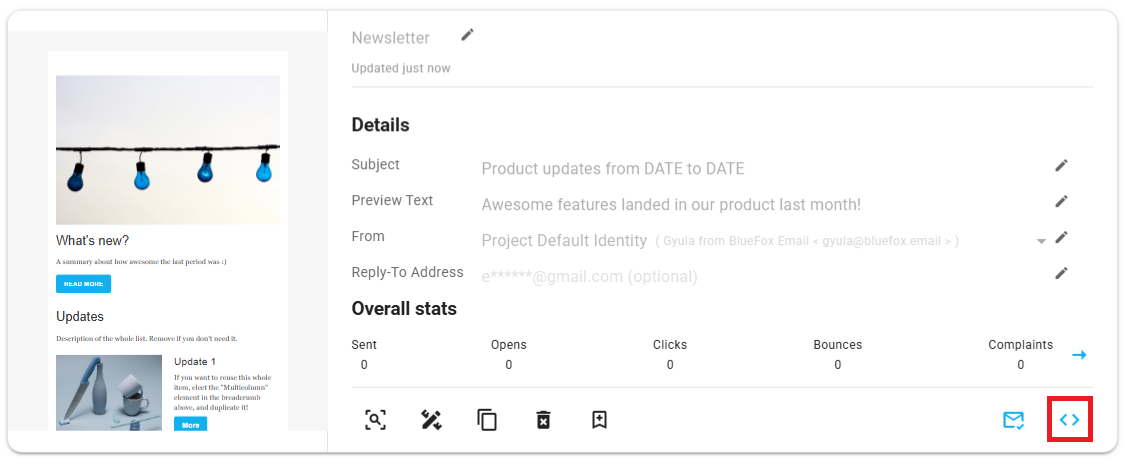
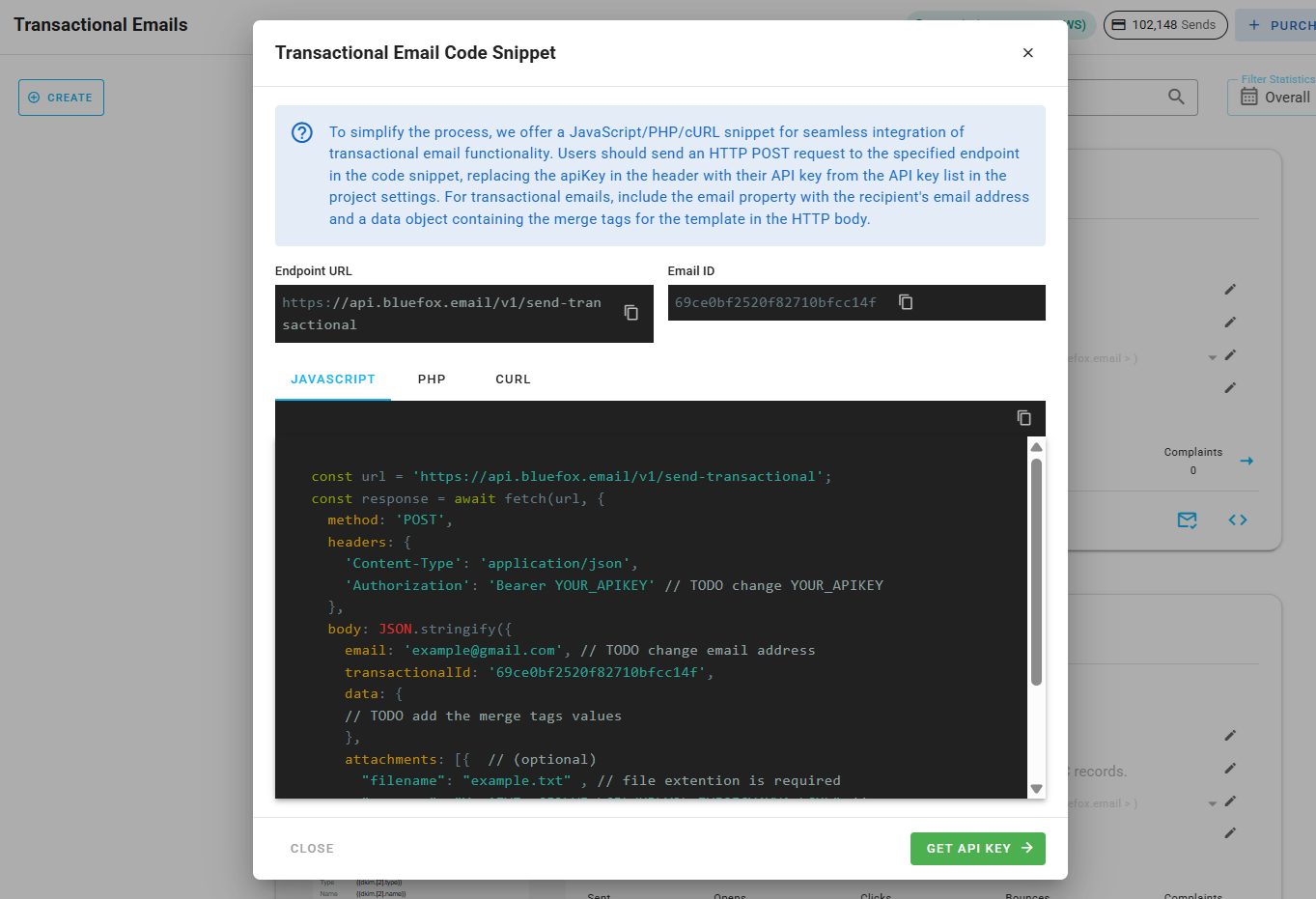
Every transactional email in bluefox.email has a unique URL for sending the email. Send an HTTP request to this endpoint. You can generate sample code in multiple programming languages by clicking this icon:
Copy the generated code to use it in your project:
Security Warning
Your bluefox.email API key is included in the request Authorization header. Never send these requests from your frontend!
See our API docs for more details.
Transactional Email Personalization
You can personalize transactional emails with handlebars. The data you send to the transactional email's endpoint determines the available variables. For example, you can send a user's name:
javascript
await fetch(yourEndpoint, {
    method: 'POST',
    headers: {
        'Content-Type': 'application/json',
        'Authorization': 'Bearer YOUR_API_KEY'
    },
    body: JSON.stringify({
        email: 'joe@doe.com',
        transactionalId: 'EMAIL_ID',
        data: {
            name: 'Joe Doe'
        }
    })
})
Visual Editor
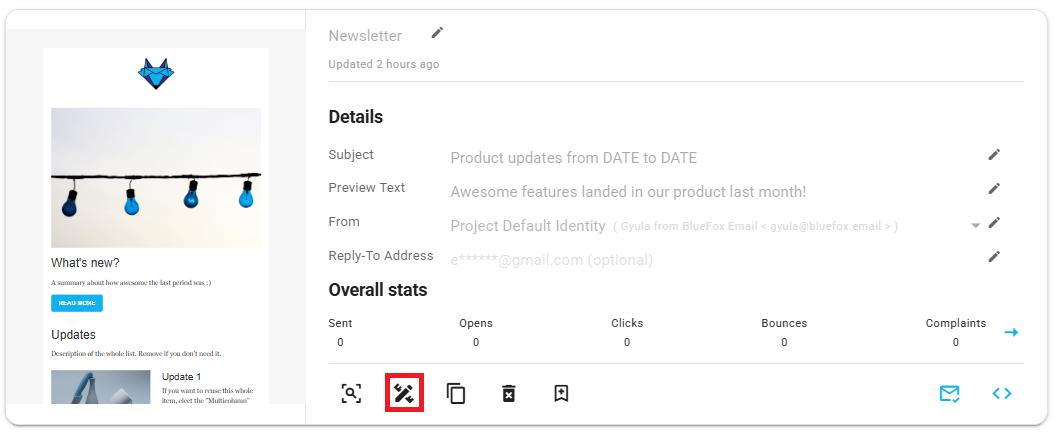
You can use any handlebars variables in your email while editing. Click on the edit icon on the card:
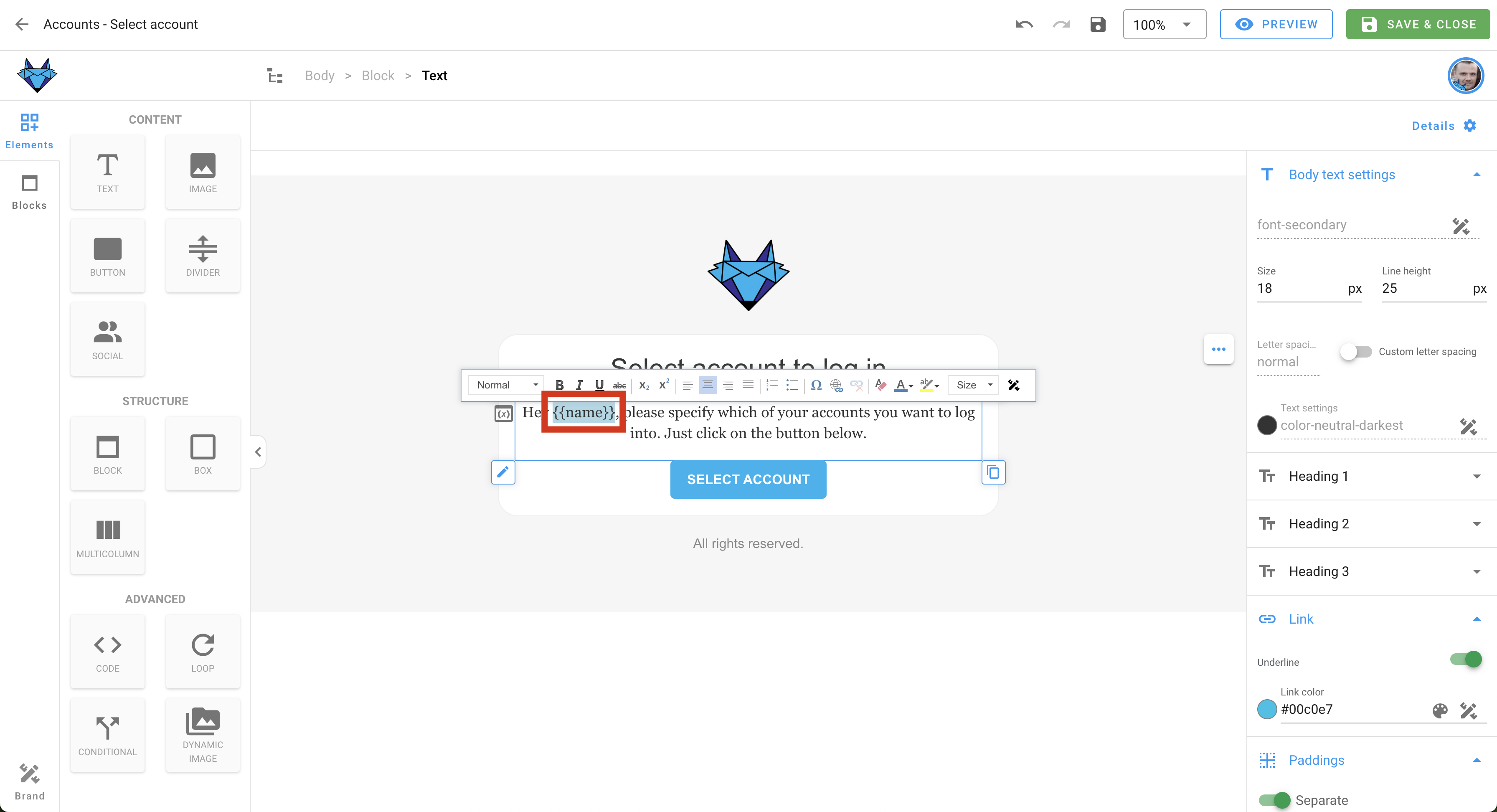
Enter your variables with Handlebars syntax:
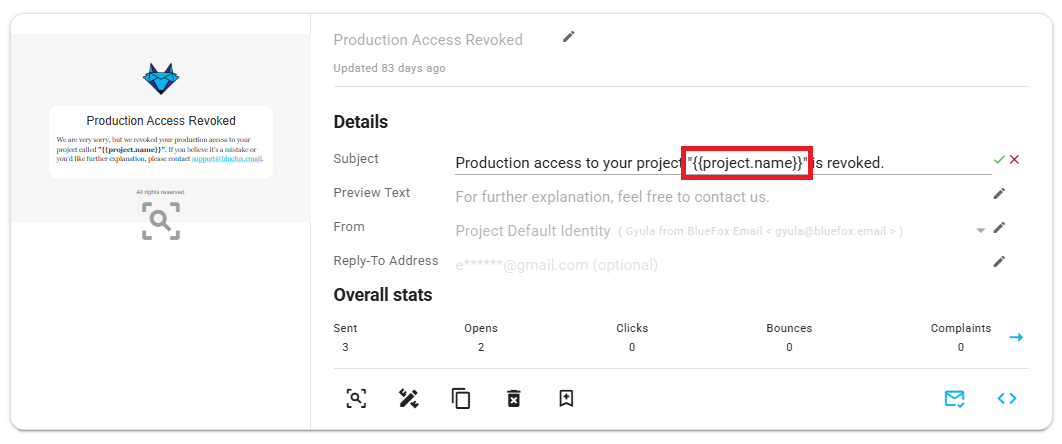
You can also use merge tags in the email's subject line and preview text!
Raw HTML / Plain Text
Merge tags work the same way, but since this isn't the Chamaileon editor, there's no click-to-bind-a-field flow. Instead, open the Merge Tags panel from the editor toolbar, place your cursor where you want the value to appear, and select the tag to insert it there. This works the same way in the subject line and preview text fields.
WARNING
If you're reusing content from a Chamaileon-built (Visual Editor) email inside a Raw HTML or Plain Text email, remove any Chamaileon-specific merge tag or component markup first, it won't resolve in the Raw HTML or Plain Text editor. Plain Handlebars merge tags (e.g. {{name}}) carry over fine either way.
For more details, read our guide on personalization with merge tags and Handlebars.
Open and Click Tracking
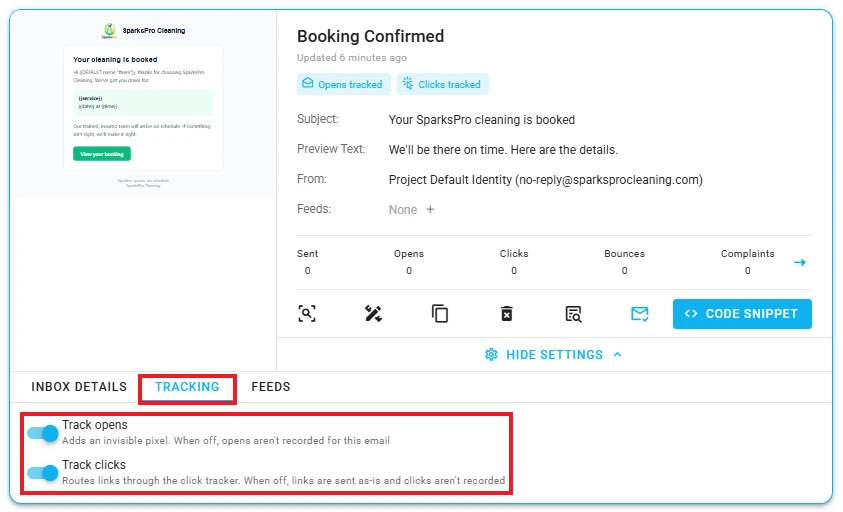
Transactional emails record opens and clicks by default. The transactional email card shows an Opens tracked and a Clicks tracked chip under its name, so you can see at a glance what's being recorded:
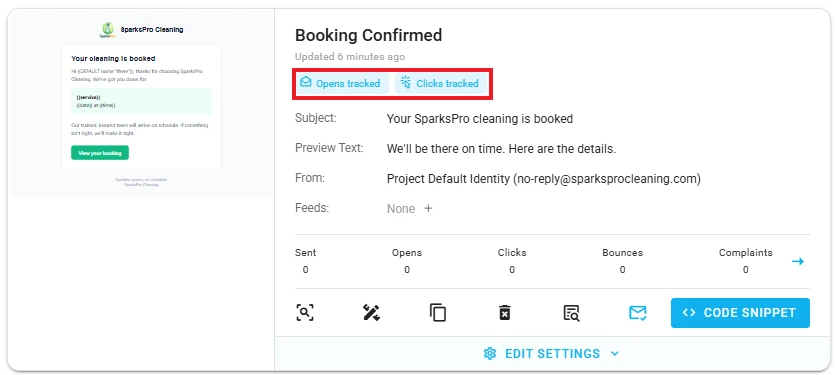
To change it, click either chip, or click Edit Settings and open the Tracking tab. There you can turn each one on or off for this email:
- Track opens: adds an invisible pixel to the email. When it's off, opens aren't recorded for this email.
- Track clicks: routes the links through the click tracker. When it's off, the links are sent as they are and clicks aren't recorded.
Transactional Email Statistics
Transactional emails are crucial for sending automated, one-to-one messages triggered by user actions, such as account registrations, order confirmations, and password resets. Tracking the performance of these emails is essential to ensure their effectiveness and timely delivery.
Why Transactional Email Statistics Matter
Understanding how your transactional emails perform helps you:
- Monitor Delivery Success: Track delivery rates, opens, clicks, and bounces to ensure your emails reach your users.
- Optimize Engagement: By analyzing open rates and click-through rates, you can optimize your transactional email content and timing for better user engagement.
- Identify Issues: High bounce rates or low open rates could indicate deliverability issues, content problems, or poor list management, allowing you to take corrective action.
- Improve Customer Experience: Timely, well-performing transactional emails enhance the overall customer experience, increasing user satisfaction and retention.
What Transactional Email Statistics Include
The transactional email statistics section includes the following key metrics:
- Sent Emails: Total number of transactional emails sent.
- Opens: Number of times the transactional emails were opened by recipients.
- Unique Opens: Number of individual recipients who opened your transactional emails (counts only one open per recipient).
- Clicks: Total number of clicks on links within the emails.
- Unique Clicks: Number of individual recipients who clicked on links within your transactional emails (counts only one click per recipient).
- Bounces: Number of emails that failed to be delivered.
- Complaints: Number of complaints (e.g., marked as spam).
Opens and clicks are recorded only while open and click tracking is on for the email.
By analyzing these metrics, you can ensure that your transactional email system is functioning properly and making the desired impact on your users.
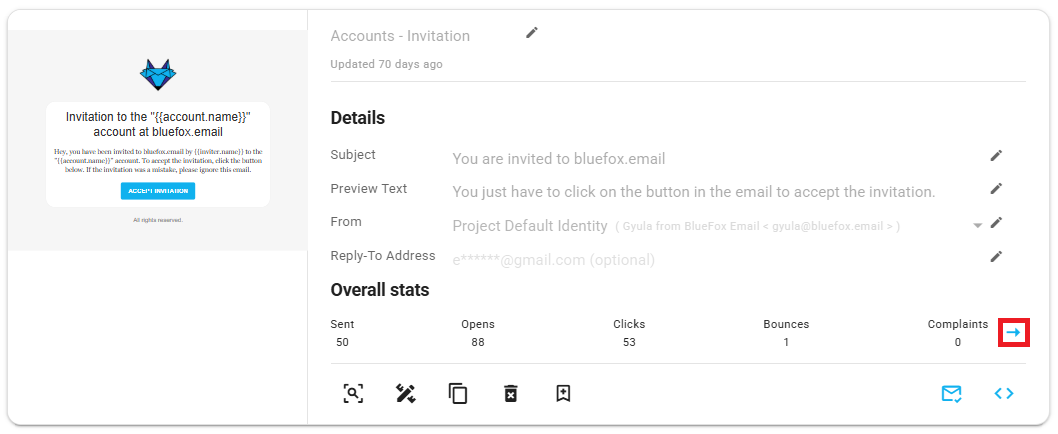
You can access the Transactional Email Statistics by clicking the arrow icon:
For a detailed guide on using the Transactional Email Statistics, refer to the Analatics Documentation.
Data Feeds
Data feeds allow you to automatically pull in live content from external sources directly into your transactional email. This is useful when your email needs to include up-to-date content (such as recommended articles, product highlights, or status info) without manually updating the template.
Feeds work the same way regardless of which editor you built the email with, Visual Editor, Raw HTML, or Plain Text.
TIP
For a full guide on using feeds inside the template (loops, merge tags, dynamic images, required behavior), see the Data Feeds documentation.
Supported feed types:
- RSS / Atom XML
- JSON
Adding a Feed
To add a feed, locate the Feeds section on your email card, just below the Details section. Click the + Add Feed button.
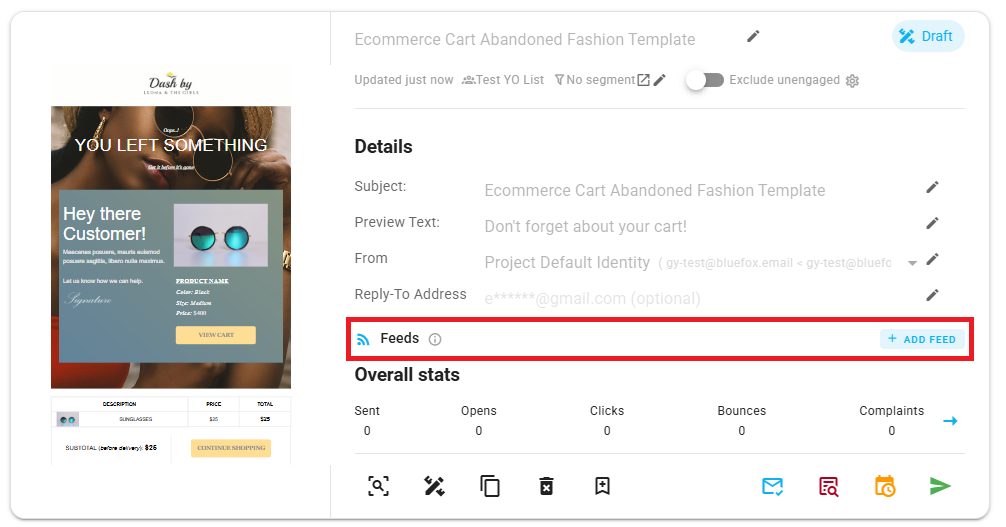
This will expand a form where you can configure your feed:
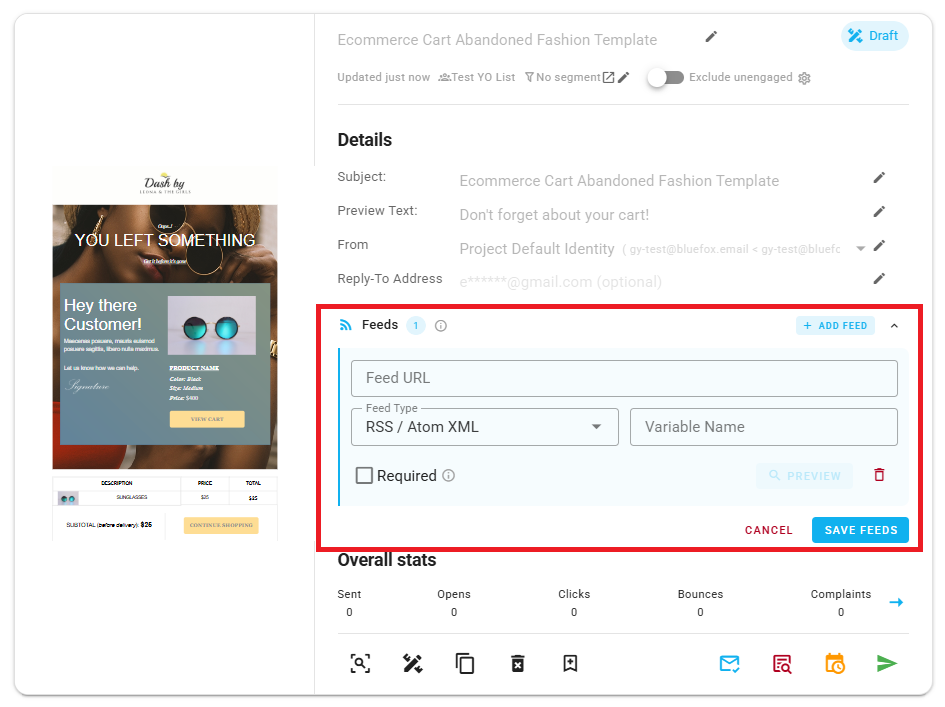
Fill in the following fields:
- Feed URL: The URL of the feed you want to pull content from.
- Feed Type: Select the type of feed — RSS / Atom XML or JSON.
- Variable Name: The name you'll use to reference this feed's data inside your email template using Handlebars syntax.
- Max Items: The maximum number of items to pull in from the feed (defaults to 5).
You can also check the Required checkbox if the feed must be available for the email to send.
Once you've filled in the details, click Preview to verify the feed is working correctly, then click Save to store your configuration.
TIP
You can add multiple feeds to a single transactional email by clicking + Add Feed again after saving the first one.
Editing Details of a Transactional Email
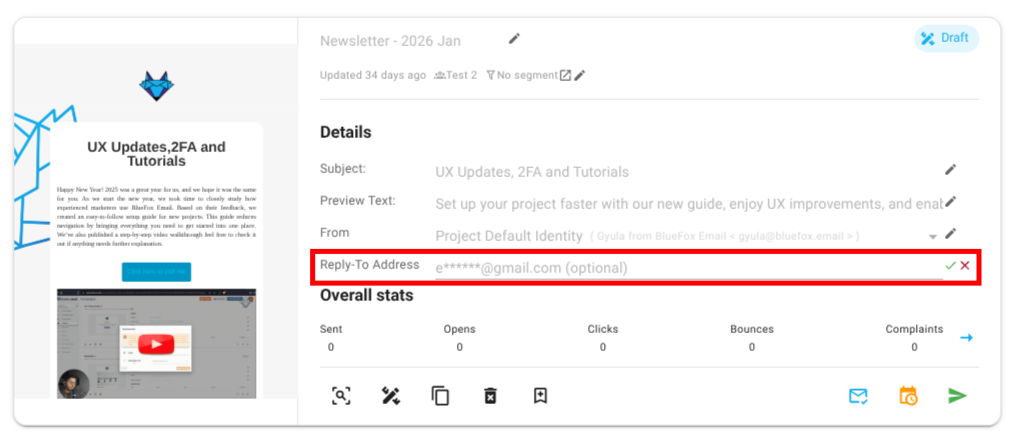
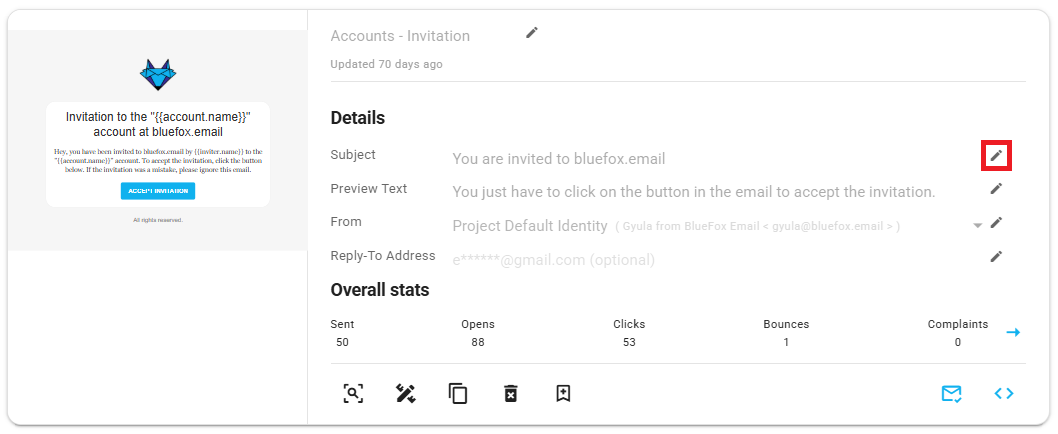
You can edit every key detail of the transactional email like subject, preview text, from identity, etc. by clicking the edit icon on the email card:
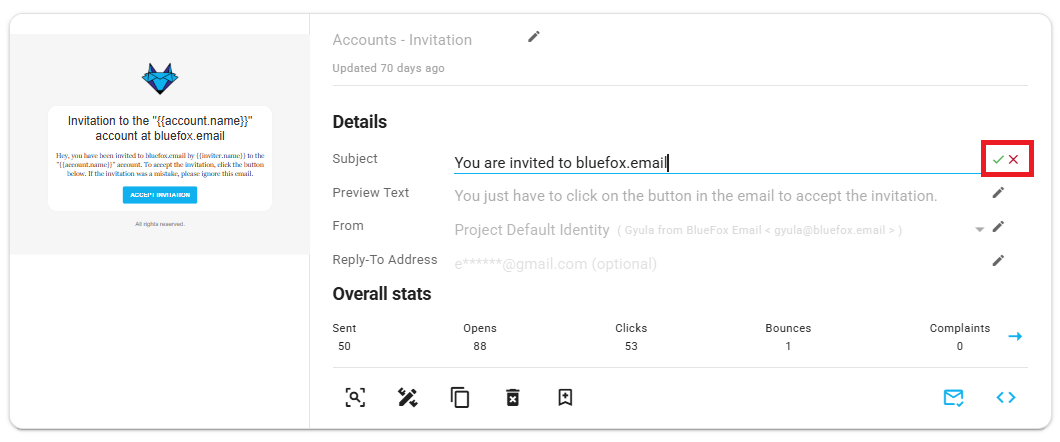
After you finish editing just click the save icon and your changes will be saved or if you want to discard them just click the close icon respectively.
Advanced Settings
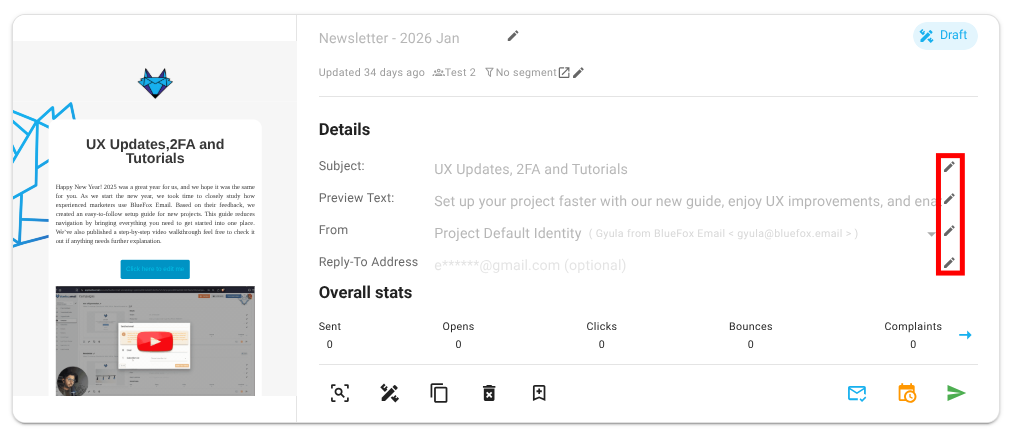
The Advanced Settings in transactional email cards allows you to customize key email-sending options, providing flexibility in managing sender identities and reply-to addresses.
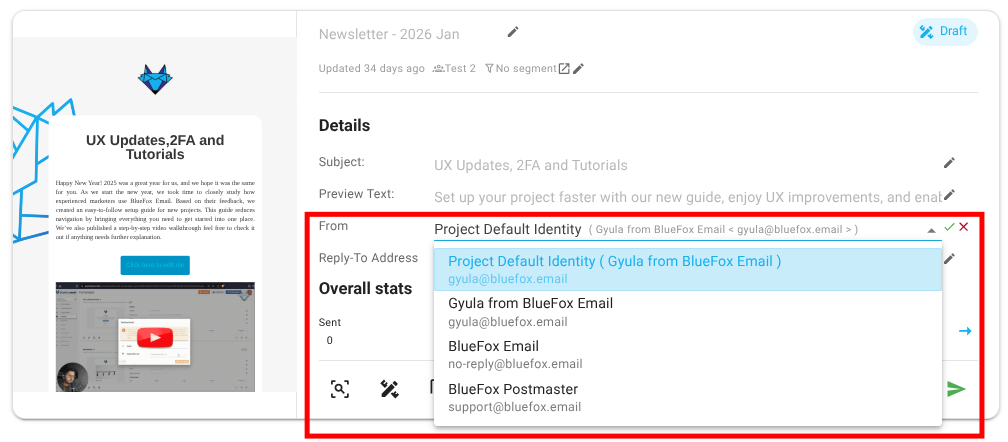
Sender Identity Selection
The sender identity field lets you choose the identity used to send the email. By default, the system automatically selects the default identity, but you can select another identity from the list of available options.
Reply-To Email Address
The reply-to email address field allows you to specify where replies to your email should be sent.