Appearance
Statistics
The Statistics section in your application provides a comprehensive analysis of email performance, subscription trends, and user engagement metrics. It is designed to cater to multiple scopes, such as account, project, transactional emails, triggered emails, automations, campaigns and subscriber lists. Each type of statistic is presented with clear visuals, detailed filters, and actionable insights.
Overview
The Statistics page has two tabs: Email Sending Trends and Subscription Trends.
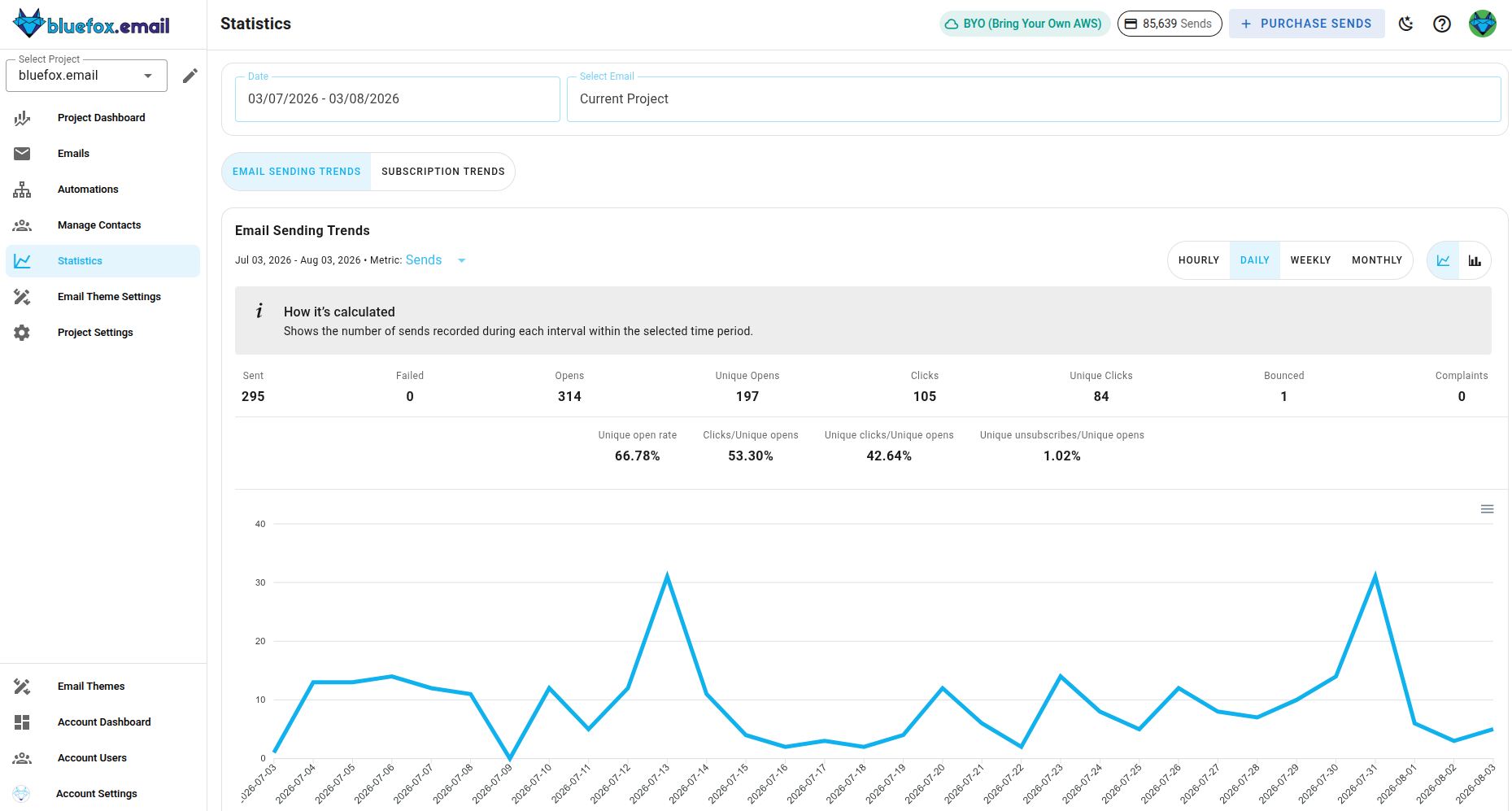
Both tabs default to a daily time interval. You can switch to hourly, weekly, or monthly using the time interval switcher above the chart.
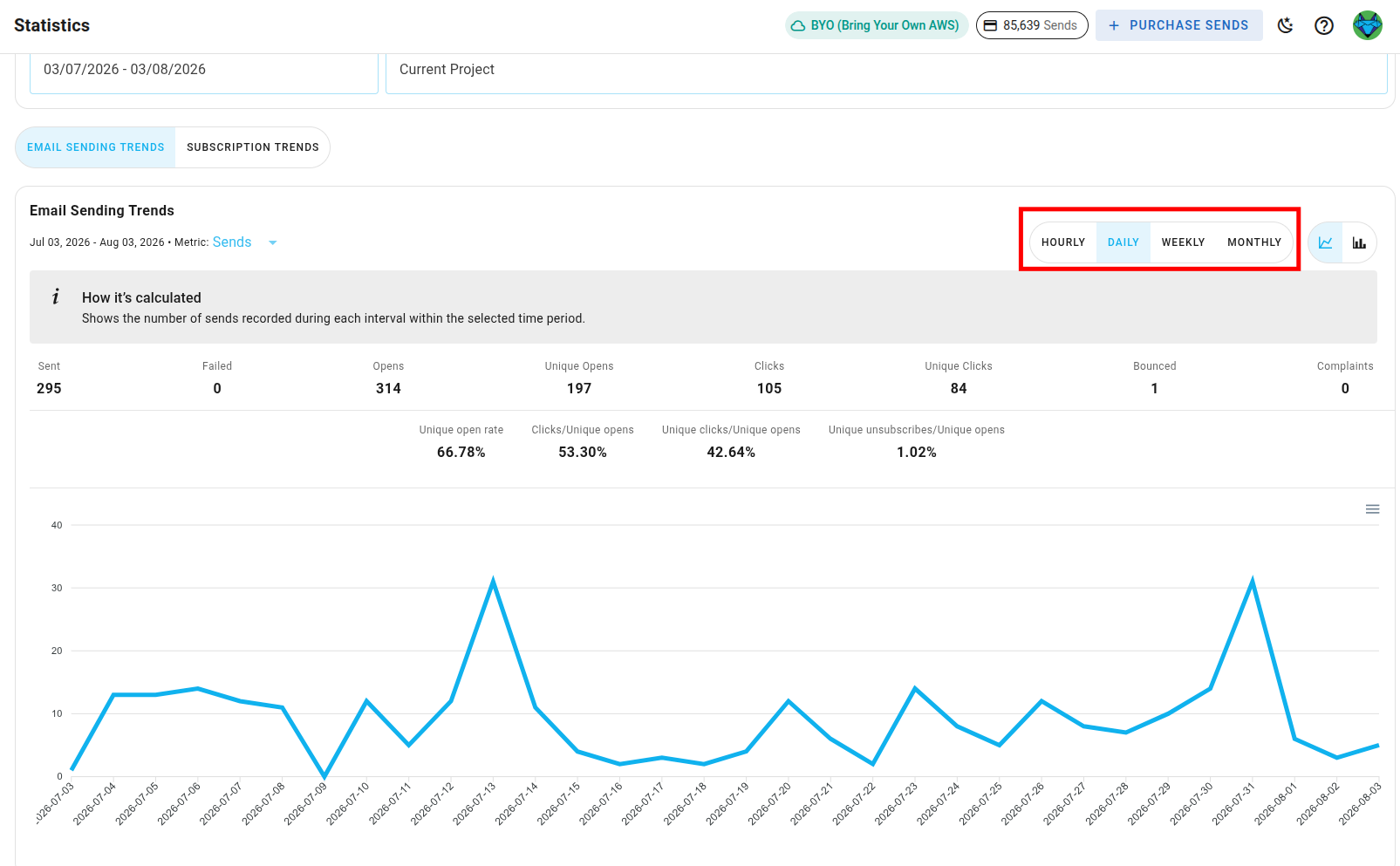
You can also switch the chart view between line chart and bar chart using the chart type toggle button.
Email Sending Trends
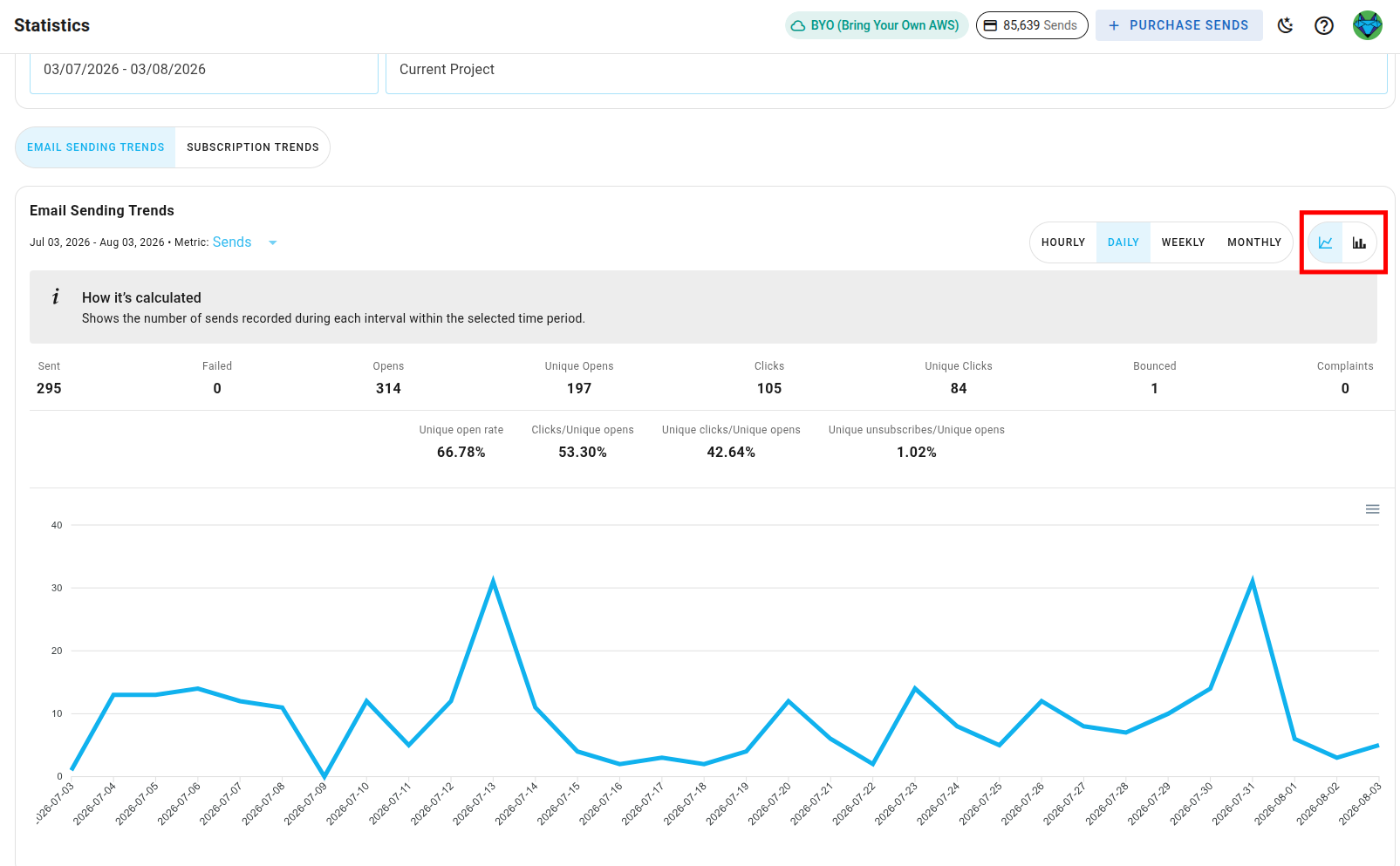
By default, the Statistics page shows this tab, displaying overall project metrics for the past month.
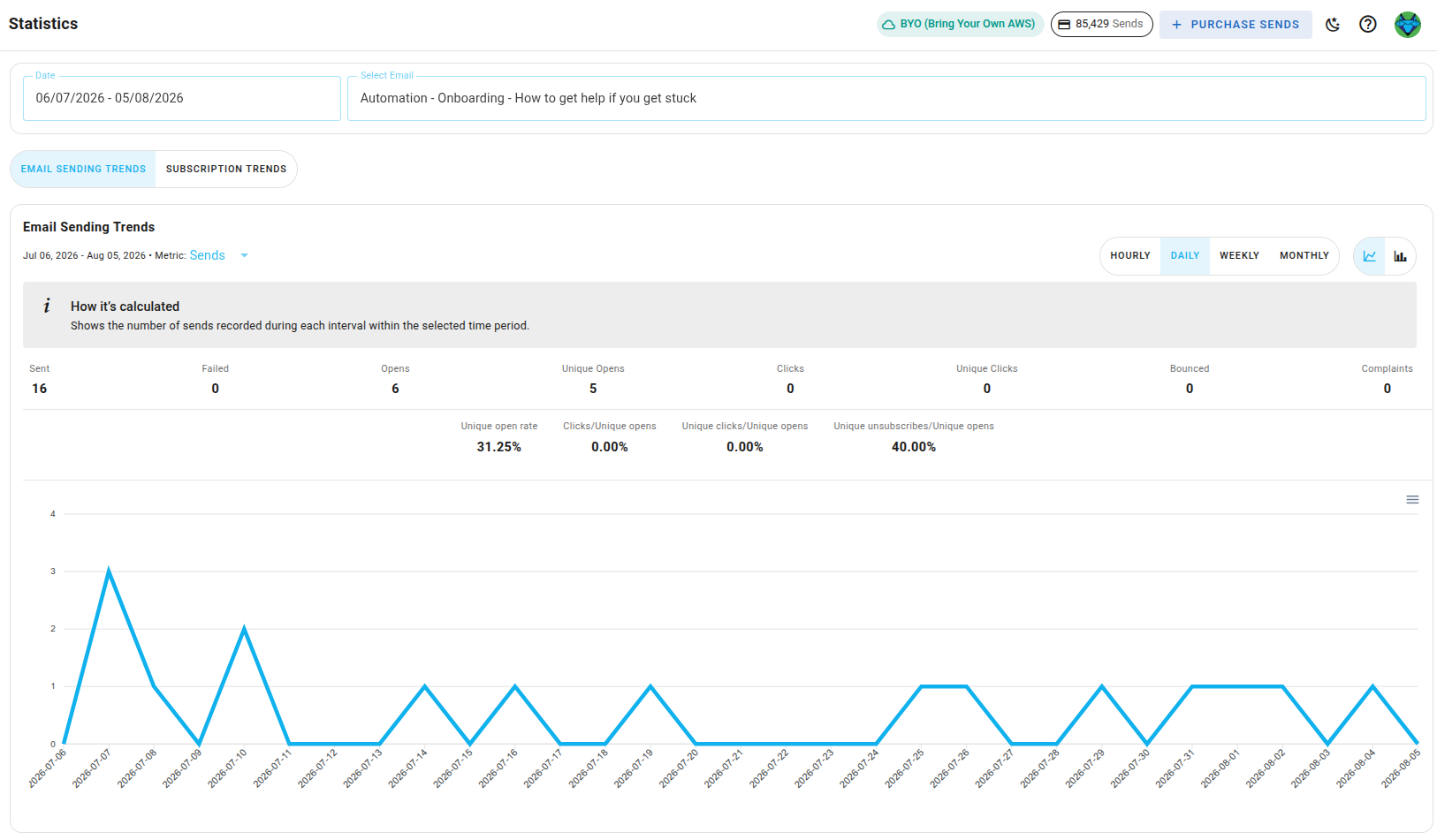
At the top of the tab, an overview banner shows sent, failed, opens, unique opens, clicks, unique clicks, bounced, and complaints, along with derived rates: unique open rate, clicks/unique opens, unique clicks/unique opens, and unique unsubscribes/unique opens.
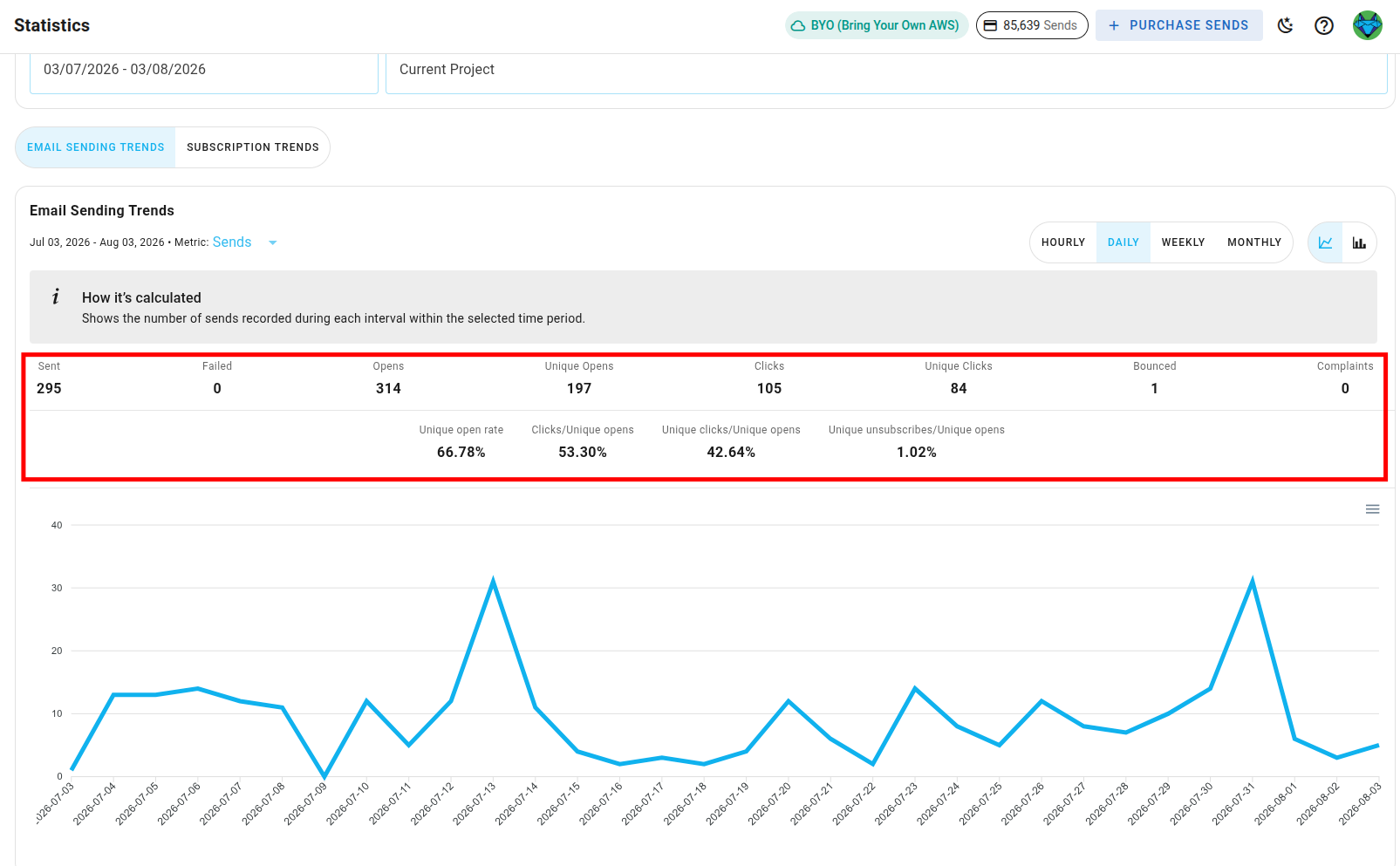
By default, the chart shows the Sends metric, along with a How it's calculated note explaining what the metric means.
You can change the metric using the dropdown next to the chart title.
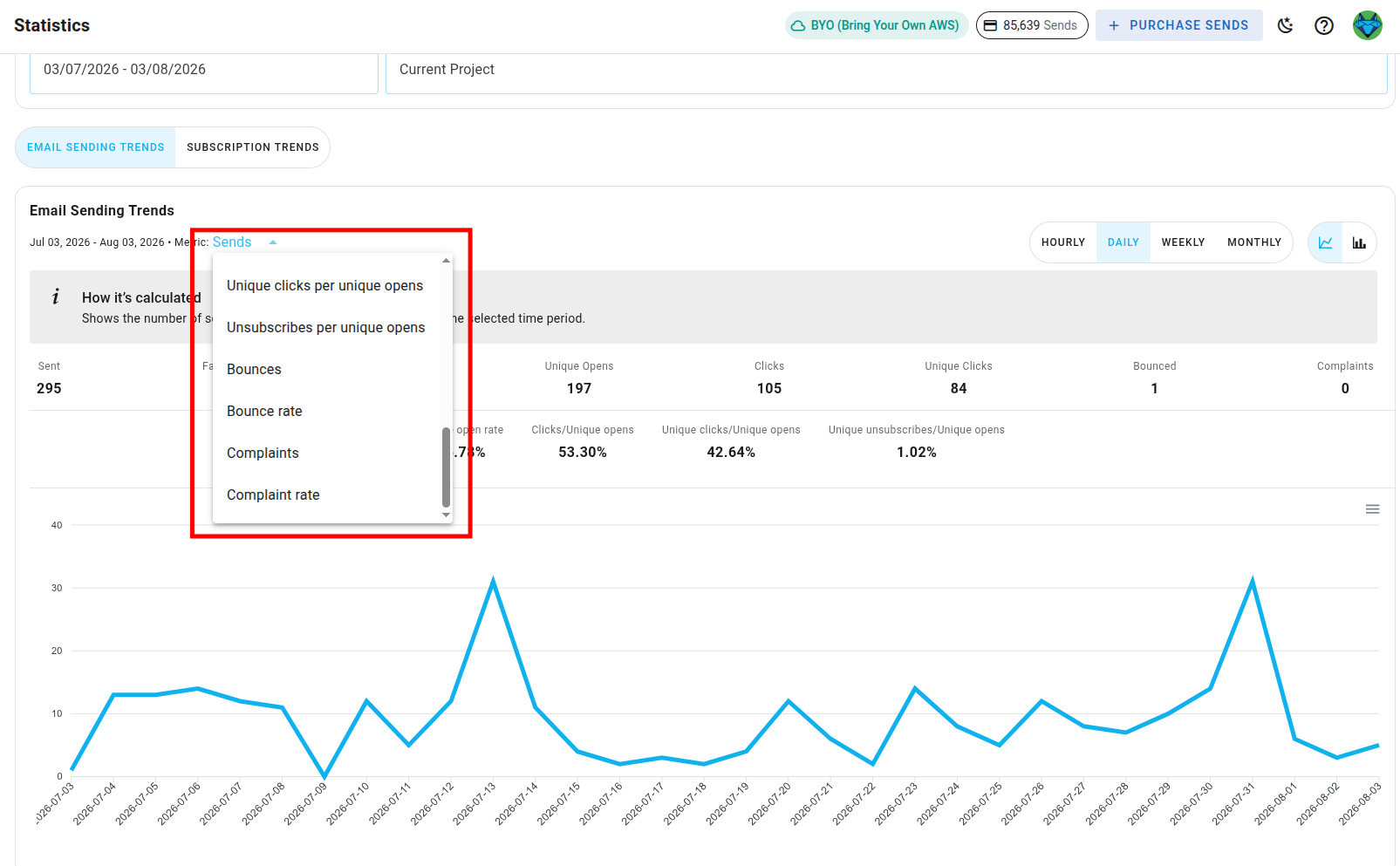
Available metrics are:
- Sends: total number of emails sent.
- Send rate: percentage of attempted sends that were successfully sent.
- Failure: total number of emails that failed to send.
- Failure rate: percentage of attempted sends that failed.
- Opens: total number of times emails were opened, including repeat opens.
- Open rate: opens as a percentage of sends.
- Unique opens: number of distinct recipients who opened the email.
- Unique open rate: unique opens as a percentage of sends.
- Clicks: total number of link clicks, including repeat clicks.
- Click rate: clicks as a percentage of sends.
- Unique clicks: number of distinct recipients who clicked a link.
- Unique click rate: unique clicks as a percentage of sends.
- Clicks per unique opens: total clicks as a percentage of unique opens.
- Unique clicks per unique opens: unique clicks as a percentage of unique opens.
- Unsubscribes per unique opens: unsubscribes as a percentage of unique opens.
- Bounces: total number of emails that bounced.
- Bounce rate: bounces as a percentage of sends.
- Complaints: total number of recipients who marked the email as spam.
- Complaint rate: complaints as a percentage of sends.
Subscription Trends
To switch to subscription trends, click the Subscription Trends tab.
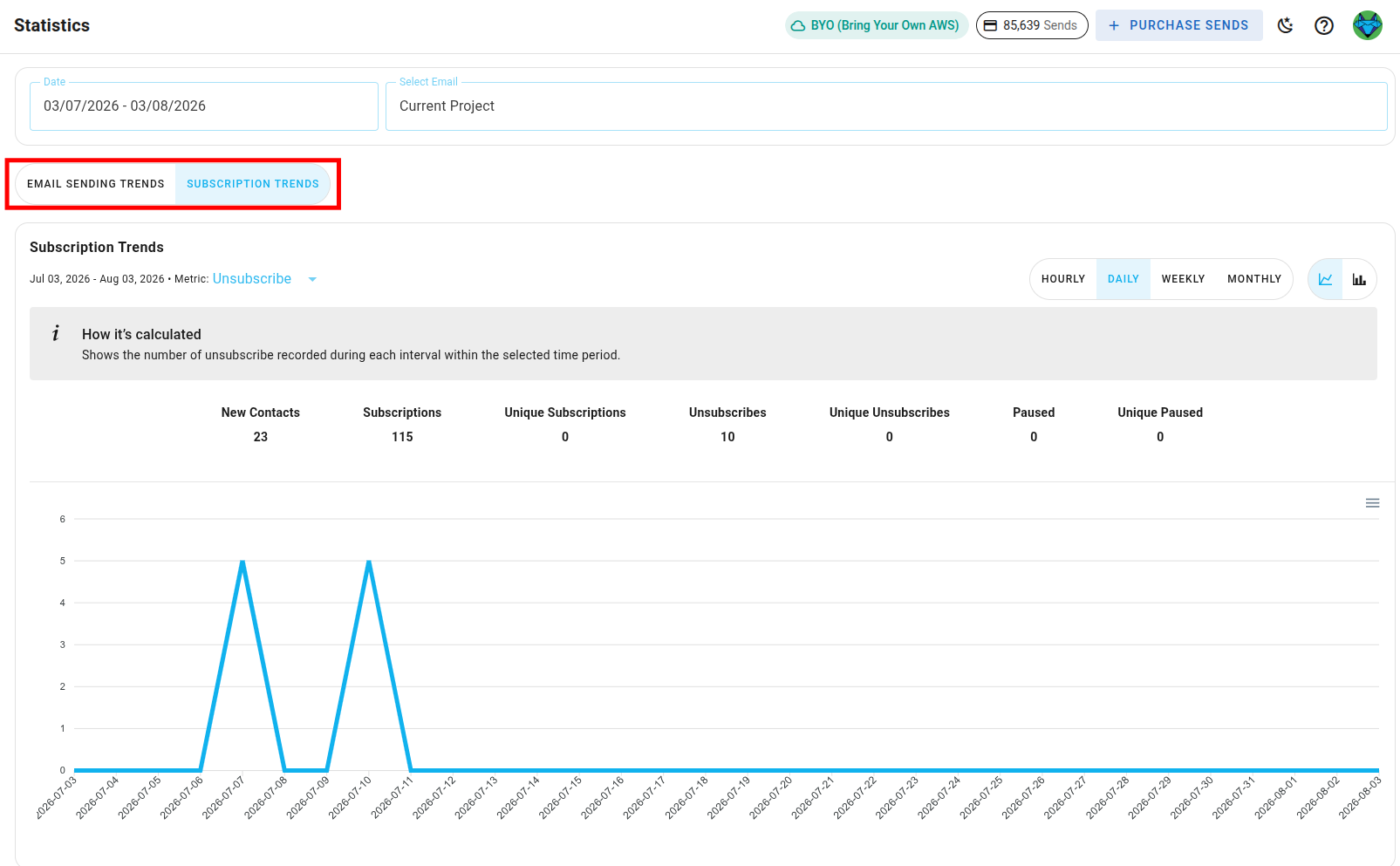
By default, you see the unsubscribe numbers for the current project over the past month.
At the top of the tab, an overview banner shows new contacts, subscriptions, unique subscriptions, unsubscribes, unique unsubscribes, paused, and unique paused.
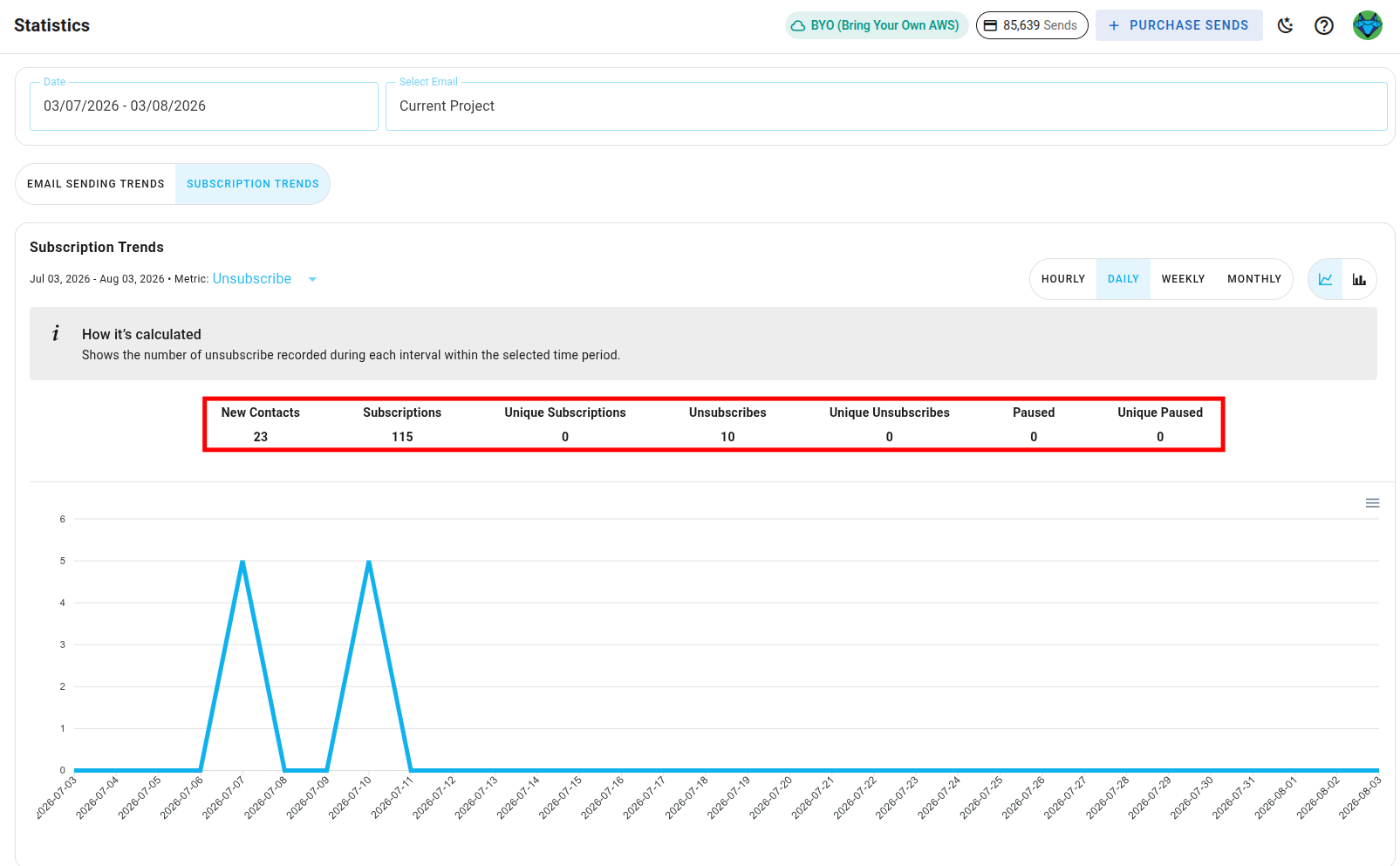
You can change the metric using the dropdown next to the chart title.
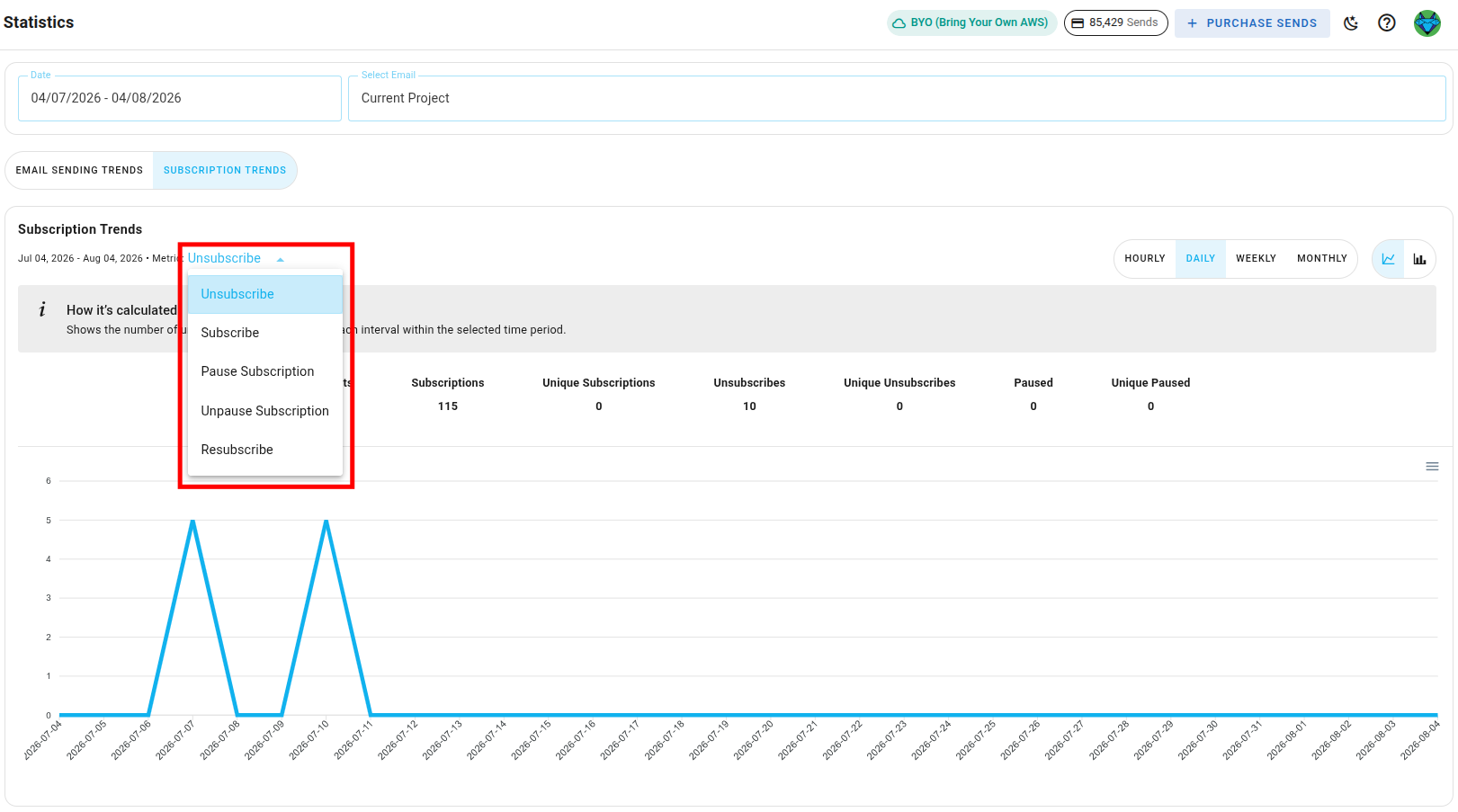
Available metrics are:
- Subscribe: number of new subscriptions.
- Unsubscribe: number of unsubscribes.
- Pause Subscription: number of subscriptions paused.
- Unpause Subscription: number of subscriptions unpaused.
- Resubscribe: number of contacts who resubscribed.
Select Email
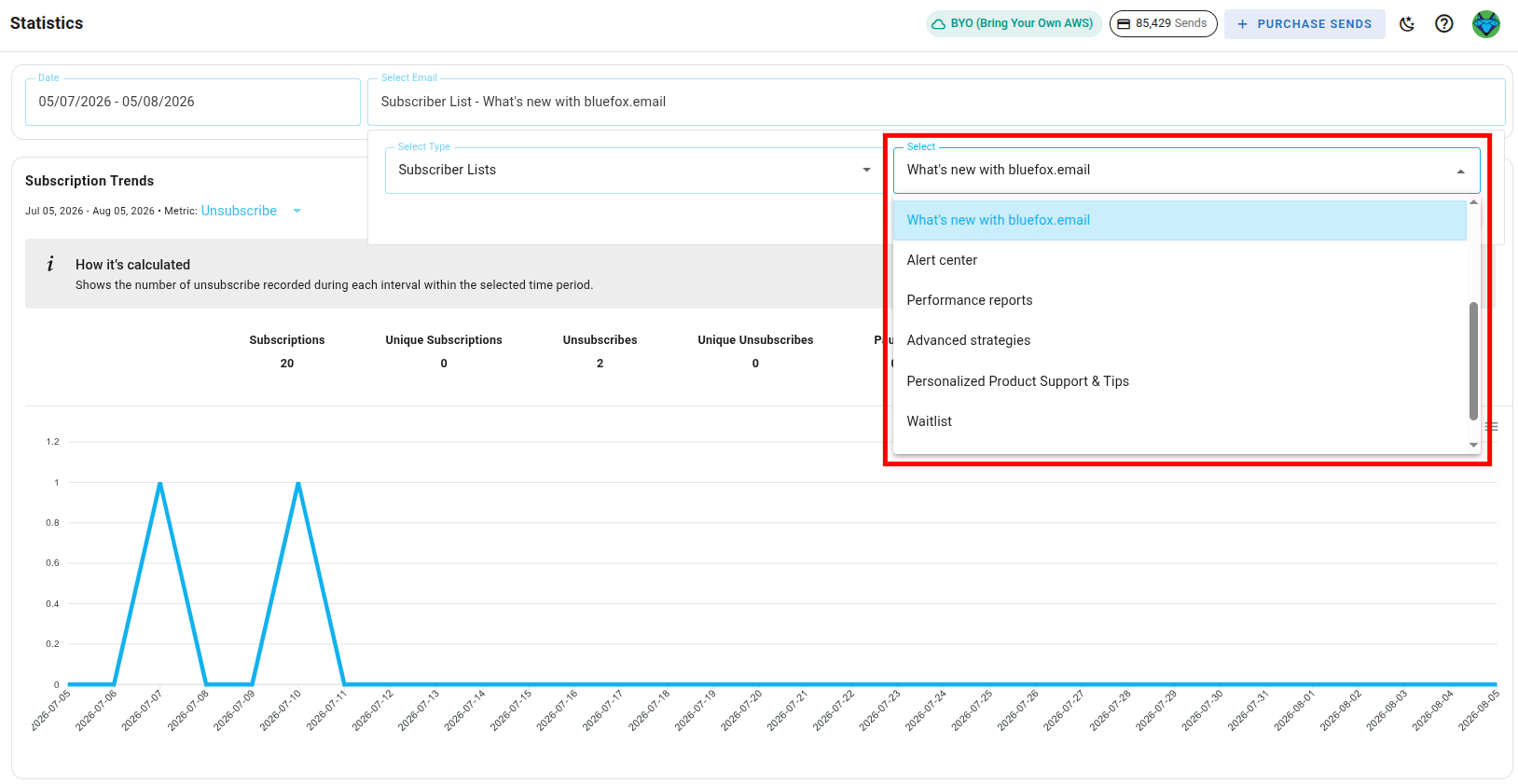
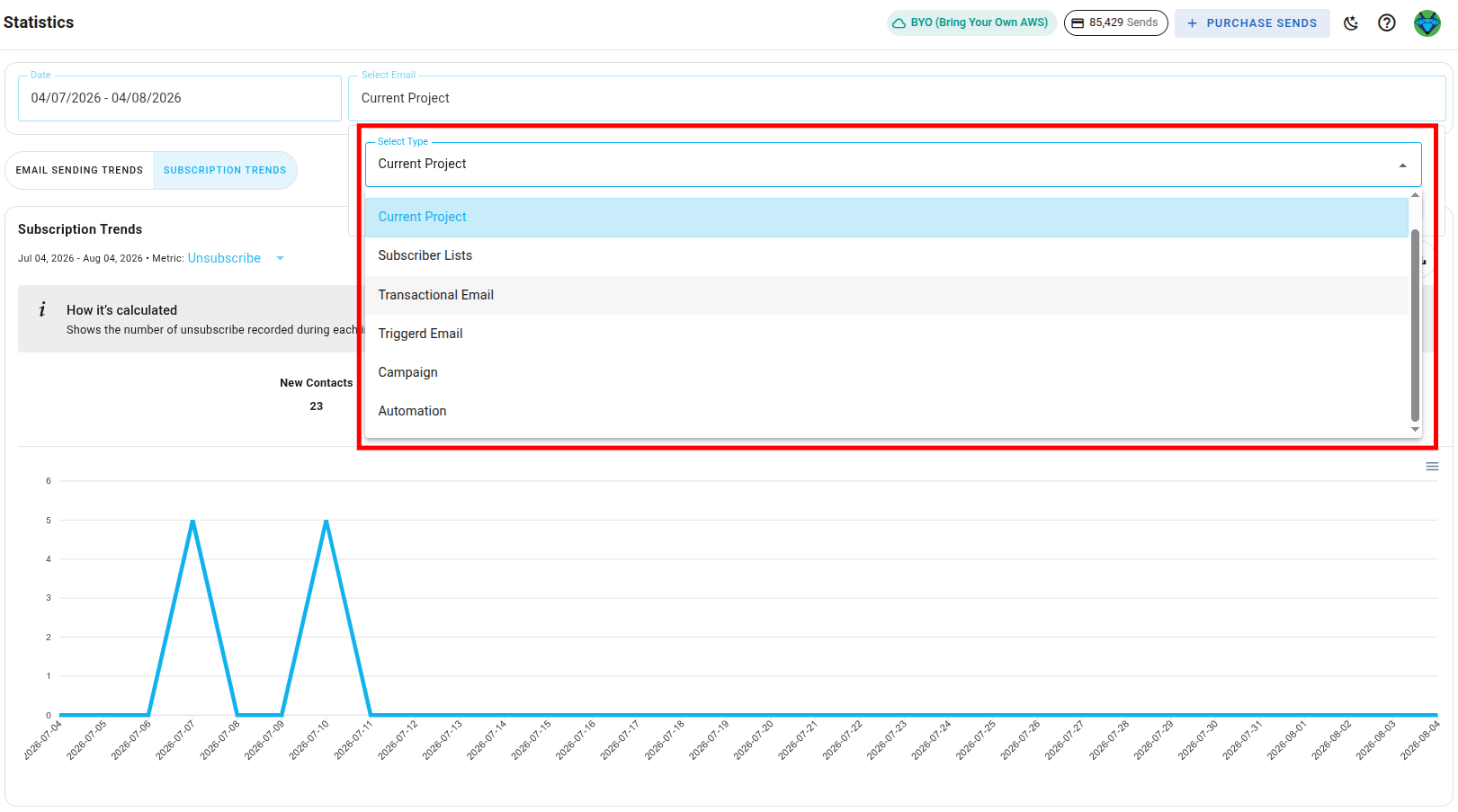
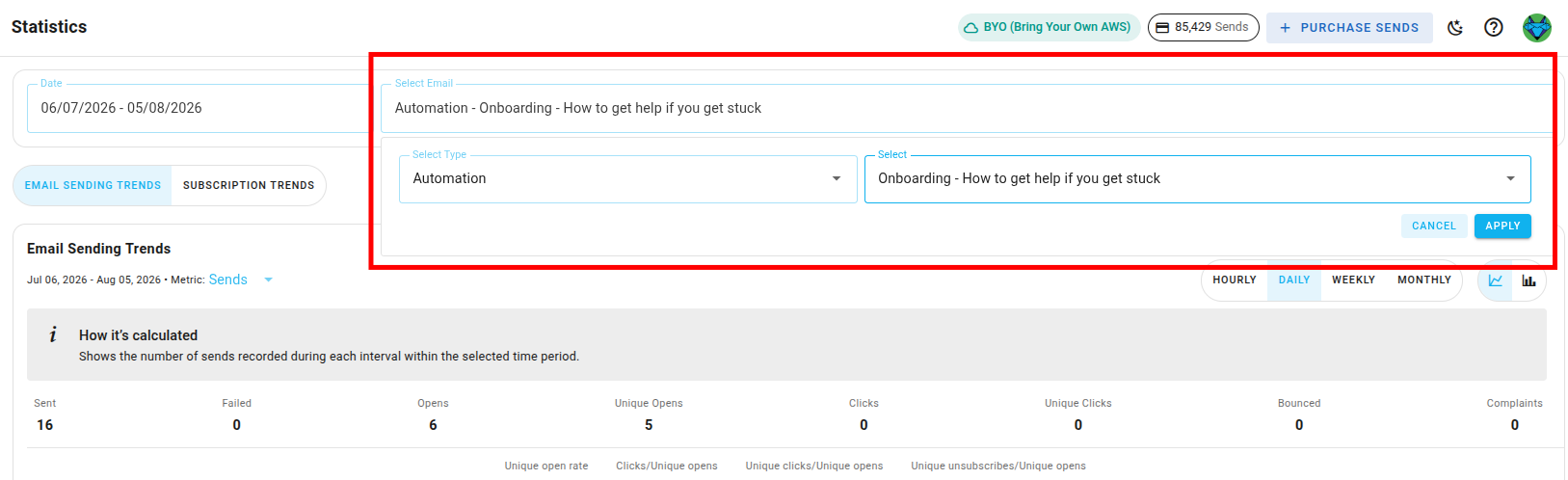
By default, the Select Email dropdown is set to Current Project, showing stats for the whole project. Opening it reveals a Select Type dropdown where you can narrow the scope to a specific Subscriber Lists, Transactional Email, Triggered Email, Campaign, or Automation. Once you pick a type, a second Select dropdown lets you choose the specific item; click Apply to load its stats.
Email Card Statistics
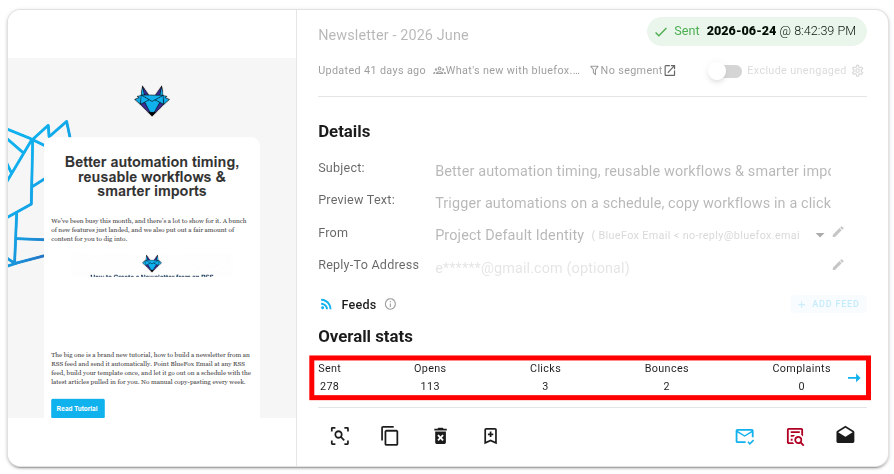
Each email card also shows a quick snapshot under Overall stats: sent, opens, clicks, bounces, and complaints, a subset of the full Email Sending Trends metrics covered above. These numbers reflect the email's overall stats, not a specific time period.
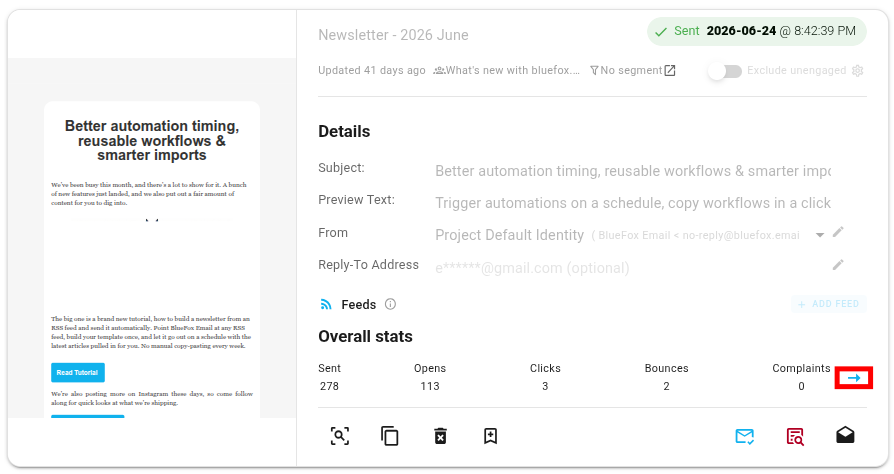
To view detailed statistics or check stats for a specific time period, click the arrow icon on the card to open the full statistics page for that email.
Here you'll see the same overview banner and chart as on the main Statistics page, but filtered to show data for that specific email only. You can change the time period and chart type as described above, and check different metrics using the dropdown next to the chart title.
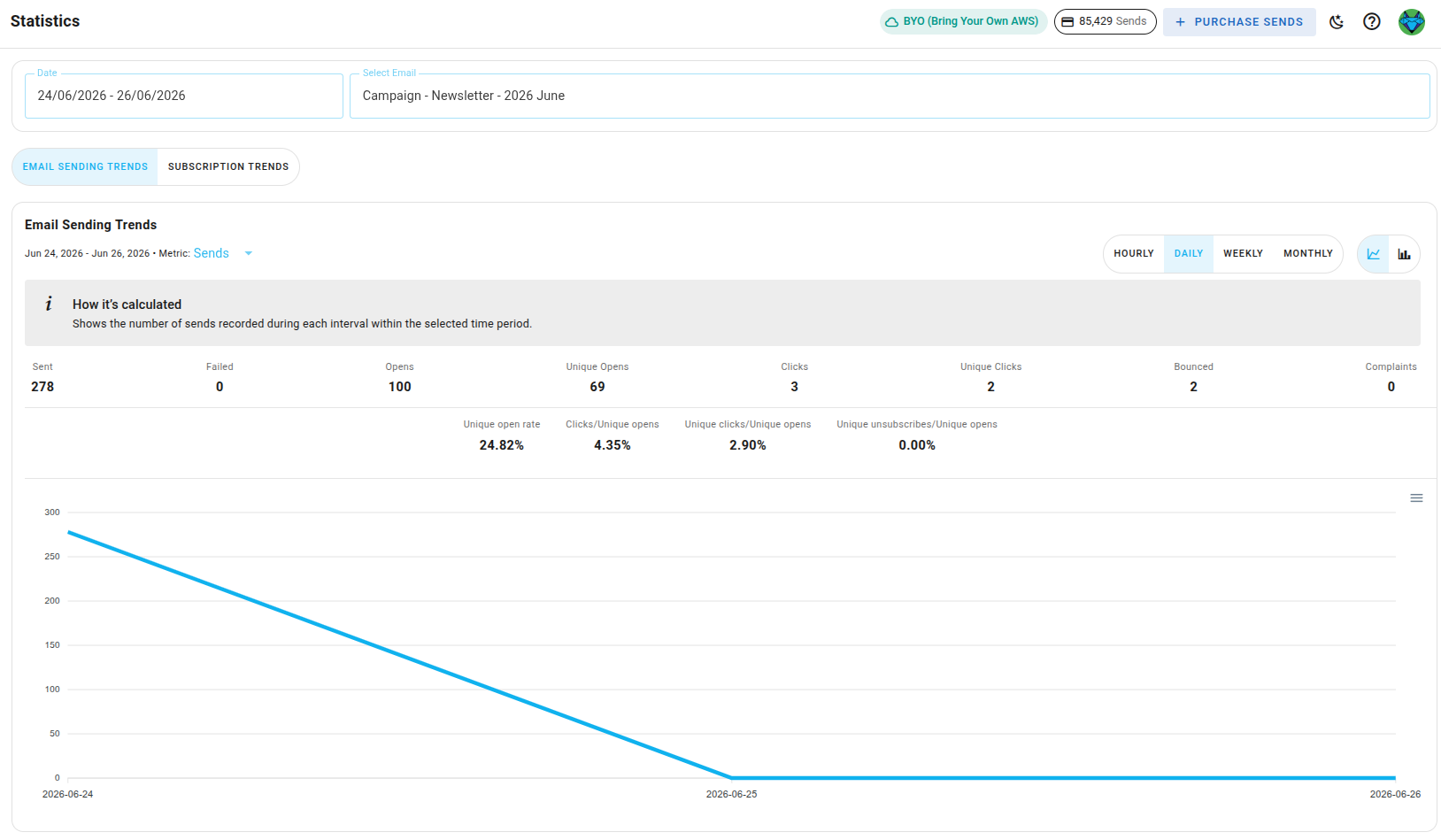
As you scroll down the page, you'll find a data table listing every contact who received the email. You can filter it by opened, not opened, clicked, not clicked, bounced, not bounced, complained, not complained, unsubscribed, and not unsubscribed.
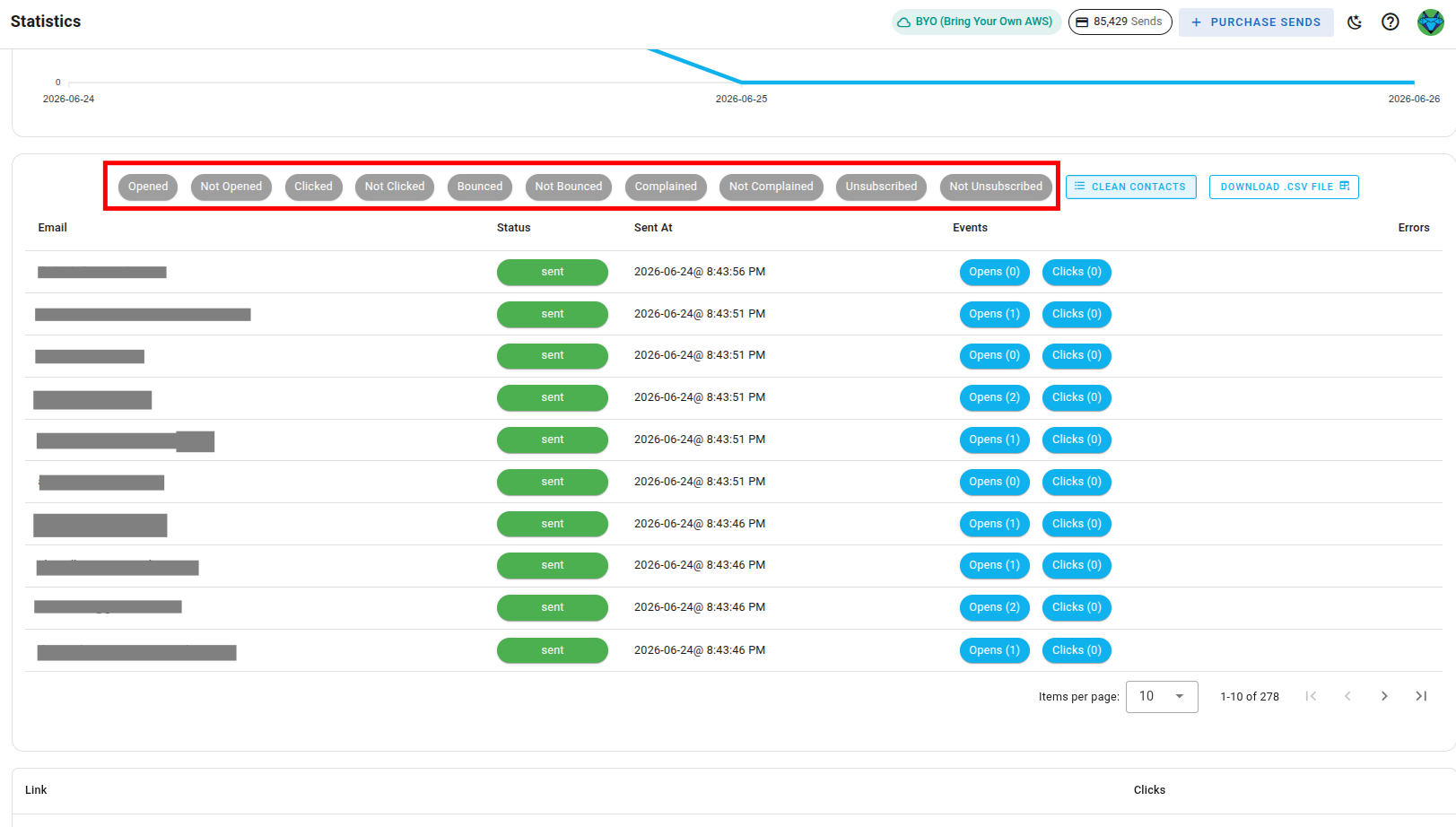
Next to these filters, you'll find a Download .CSV File button, along with a Clean Contacts option to clean the list based on bounces and complaints. To learn more about list cleaning, check our List Cleaning documentation.
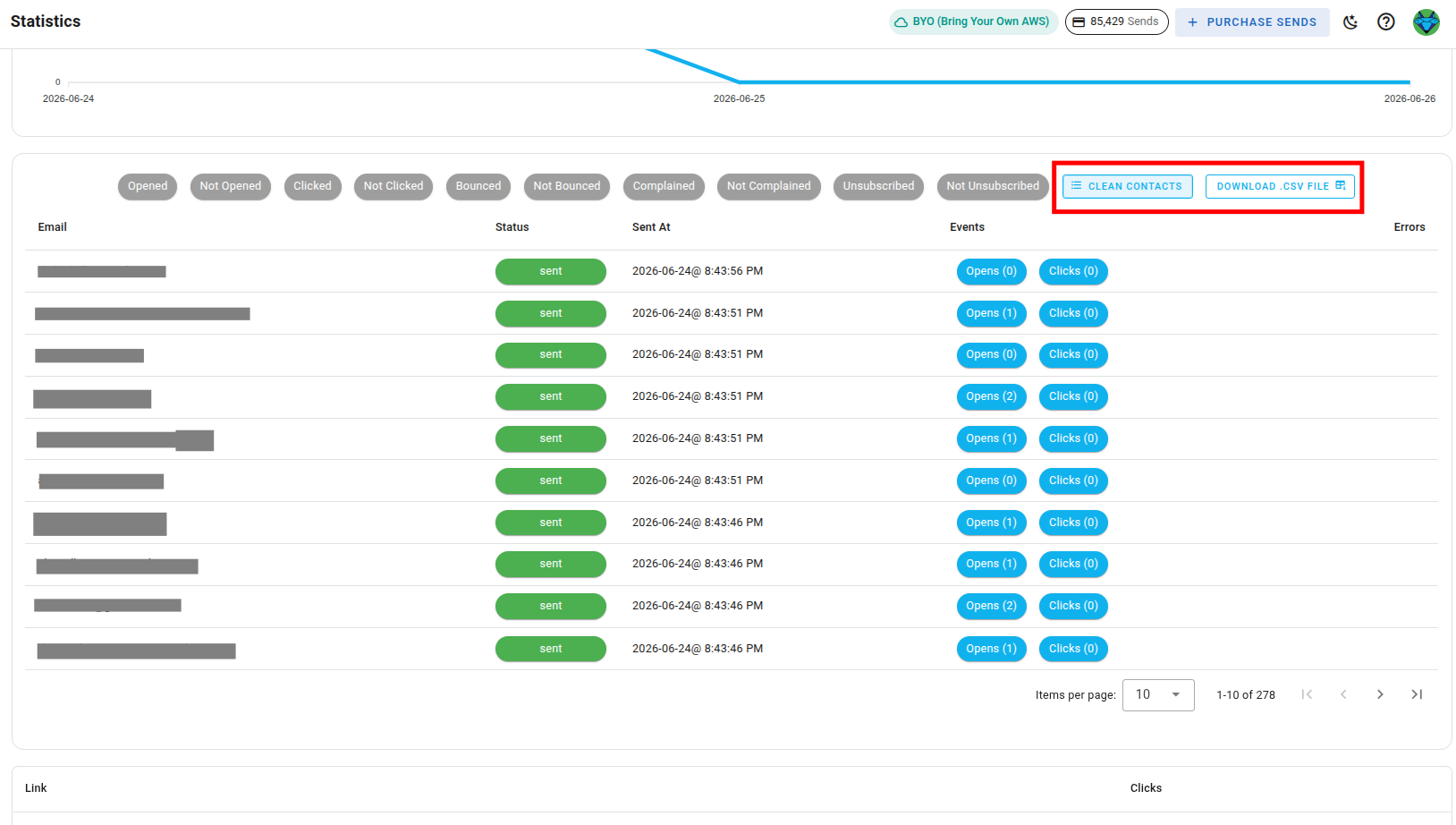
The table shows each contact's email, status, and the date the email was sent. You can also see the number of opens and clicks for each contact, as well as any errors.
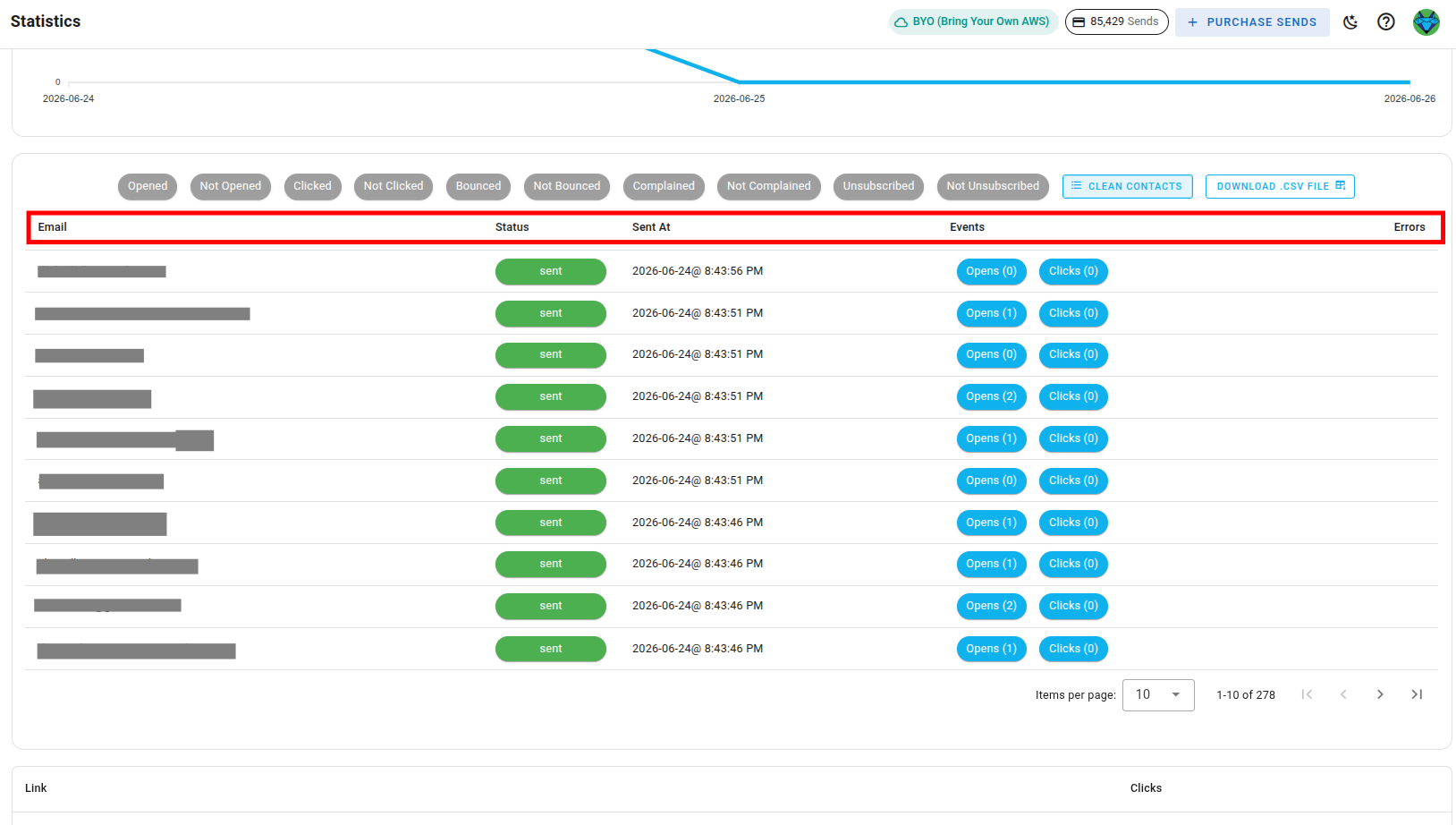
If you scroll down further, you'll see a list of all the links clicked in that email, along with the number of clicks for each link.

Automation Card Statistics
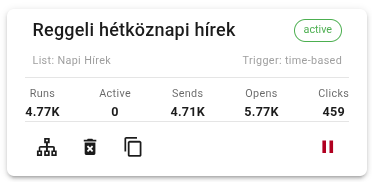
Each automation card also shows quick stats: runs, active, sends, opens, and clicks.
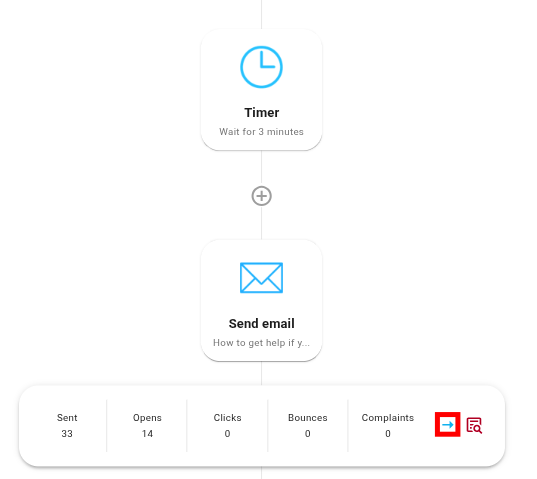
To view detailed statistics, go into that particular automation and click the arrow icon on the send email node card to open the full statistics page for that automation.
The detailed statistics page follows the same layout described in Email Card Statistics above, overview banner, chart with metric dropdown, and data table, filtered to show data for that specific automation email.
Here also if you scroll down, you'll find a data table listing every contact who received the automation email. You can filter it by opened, not opened, clicked, not clicked, bounced, not bounced, complained, not complained, unsubscribed, and not unsubscribed.
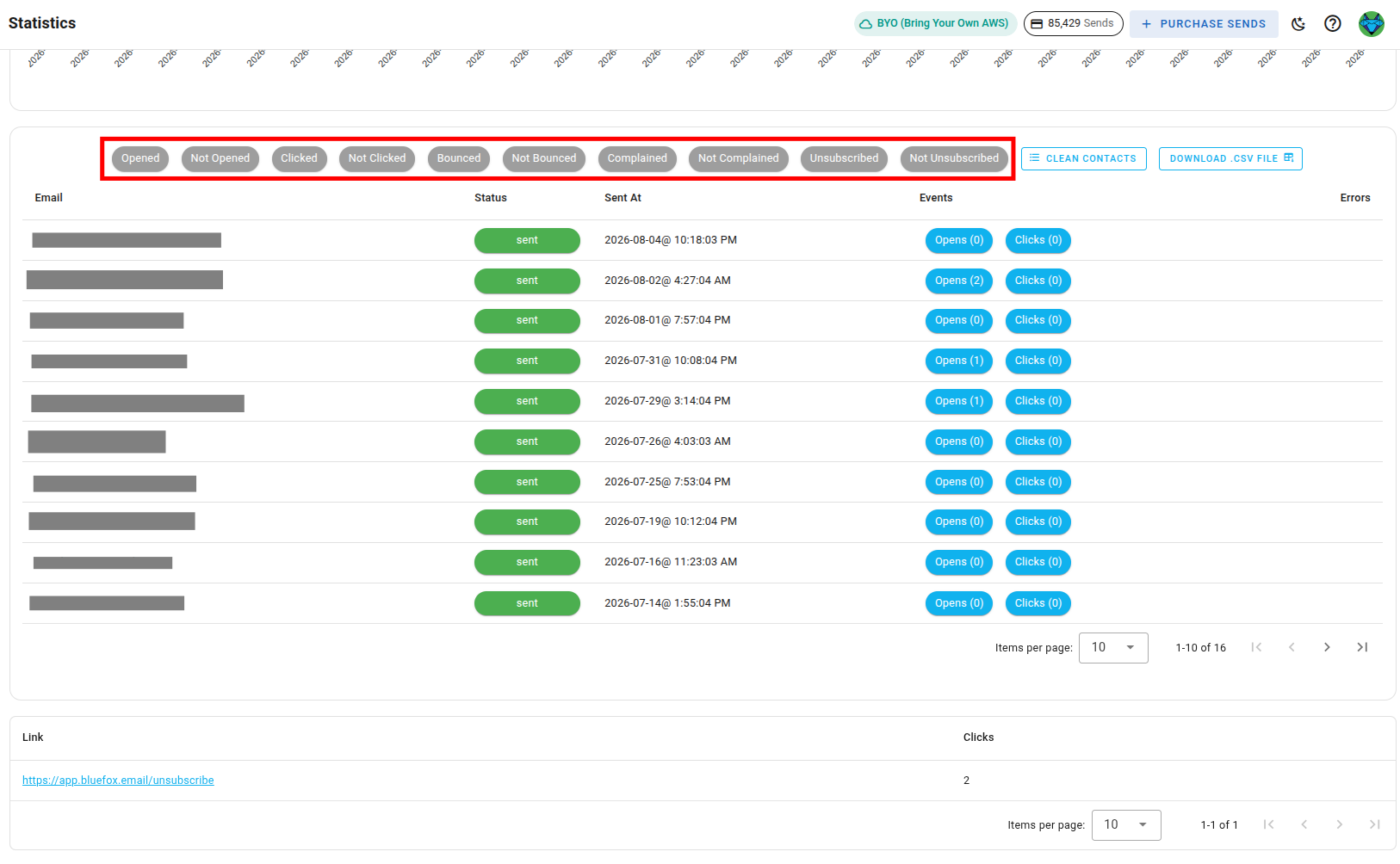
Beside these filters, you'll find a Download .CSV File button, along with a Clean Contacts option to clean the list based on bounces and complaints. To learn more about list cleaning, check our List Cleaning documentation.
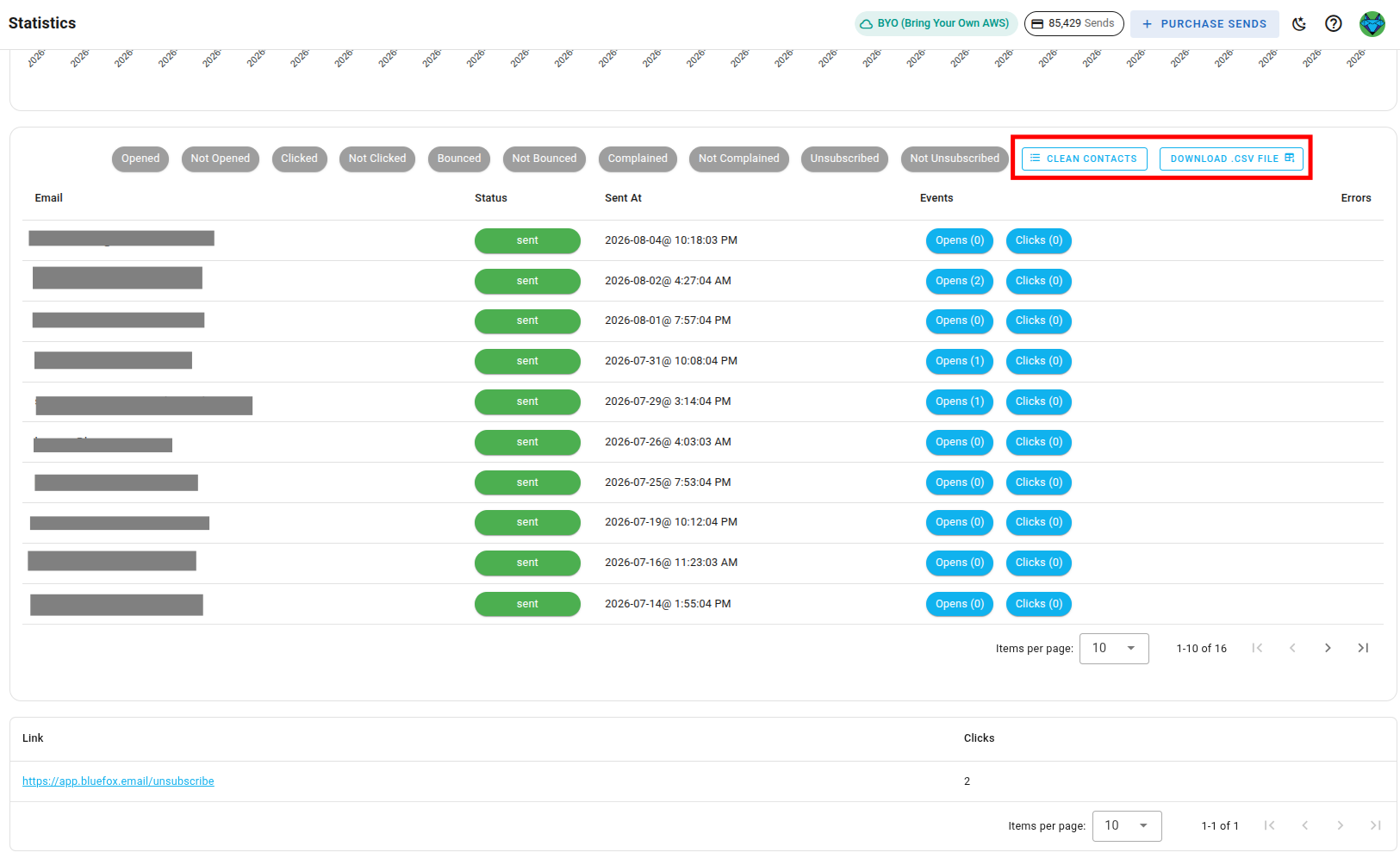
Below the filters, the table shows each contact's email, status, and the date the email was sent. You can also see the number of opens and clicks for each contact, as well as any errors.
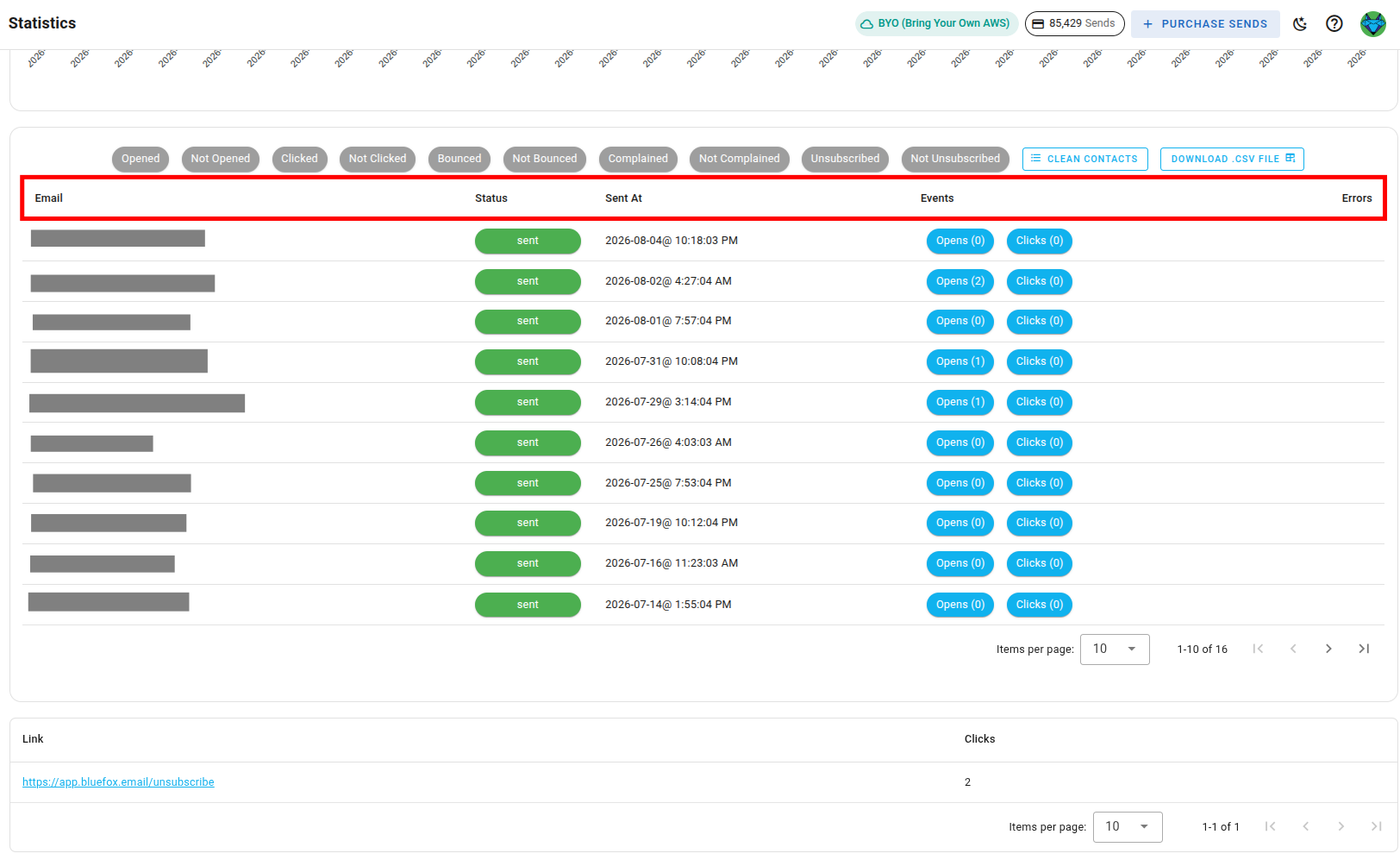
Scroll down further to see a list of all the links clicked in that automation email, along with the number of clicks for each link.

If you want to change the automation email, use the Select Email dropdown at the top of the page: set Select Type to Automation, then pick the automation email from the Select dropdown and click Apply. The statistics page will update to show data for that selected automation email.
Subscriber list statistics
To check stats for a specific subscriber list, go to the Contacts section and select the list you want to analyze. There click on the Manage List button and then select More Stats from the dropdown menu.
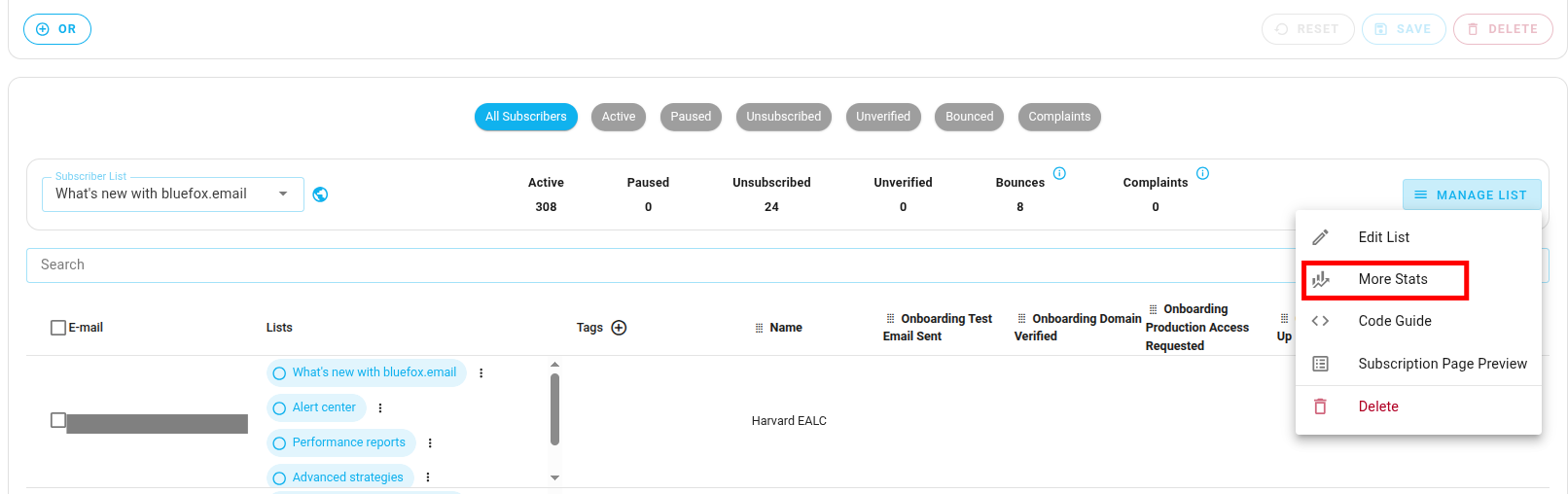
When you do, you will see similar statistics as described above, but filtered to show data for that specific subscriber list.
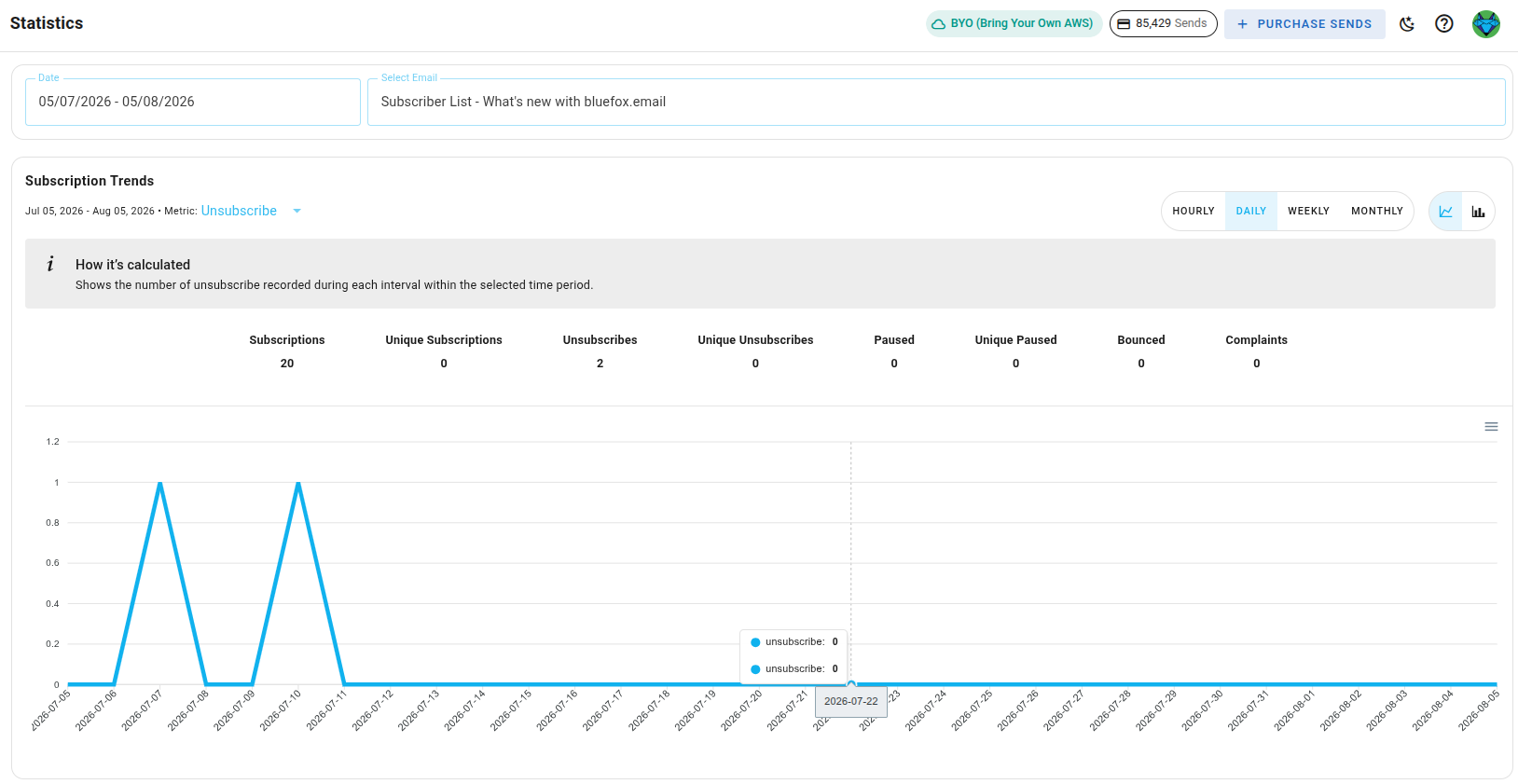
If you want to change the subscriber list, use the Select Email dropdown at the top of the page: set Select Type to Subscriber Lists, then pick a different list from the Select dropdown and click Apply. The statistics page will update to show data for that selected list.